This guide walks you through connecting your WhatsApp Business account using Meta’s Cloud API Embedded Signup inside DMLY.
Follow the steps carefully to ensure a successful connection.
Log in to your DMLY account.
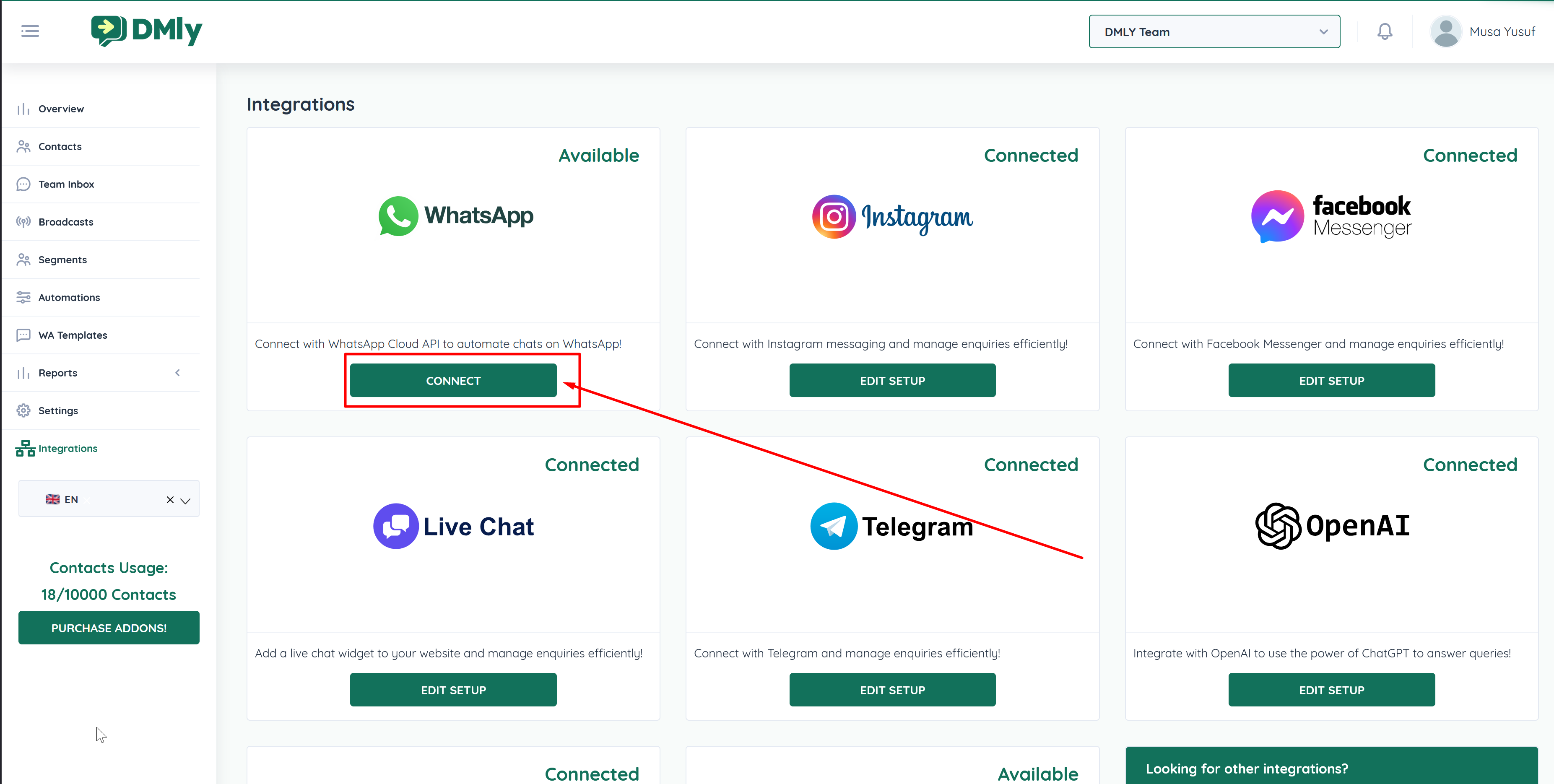
Navigate to Integrations.
Under the WhatsApp card, click the CONNECT button
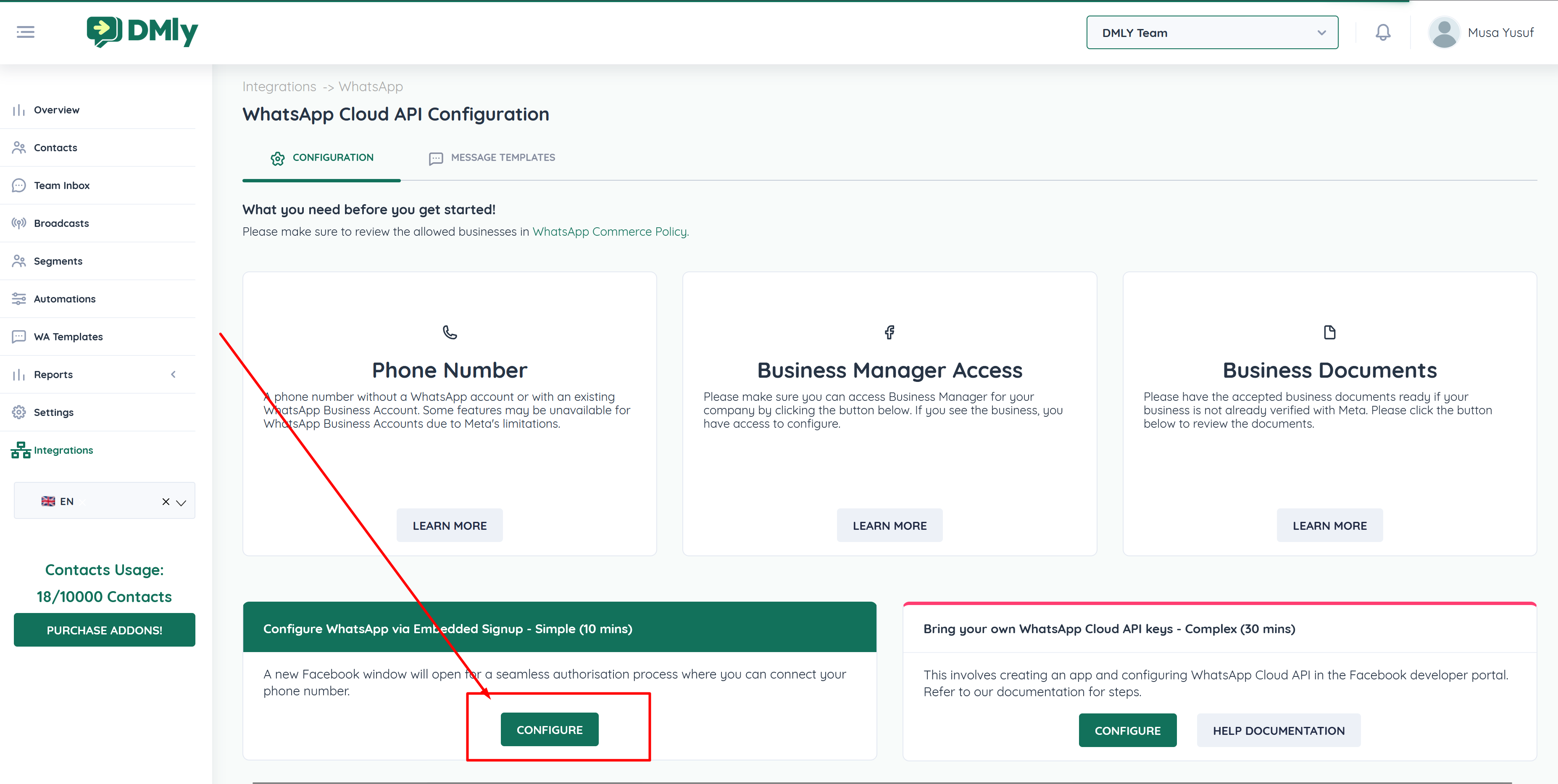
Scroll to the Configure WhatsApp via Embedded Signup section.
Click the Configure button.
This will initiate the Meta onboarding process.
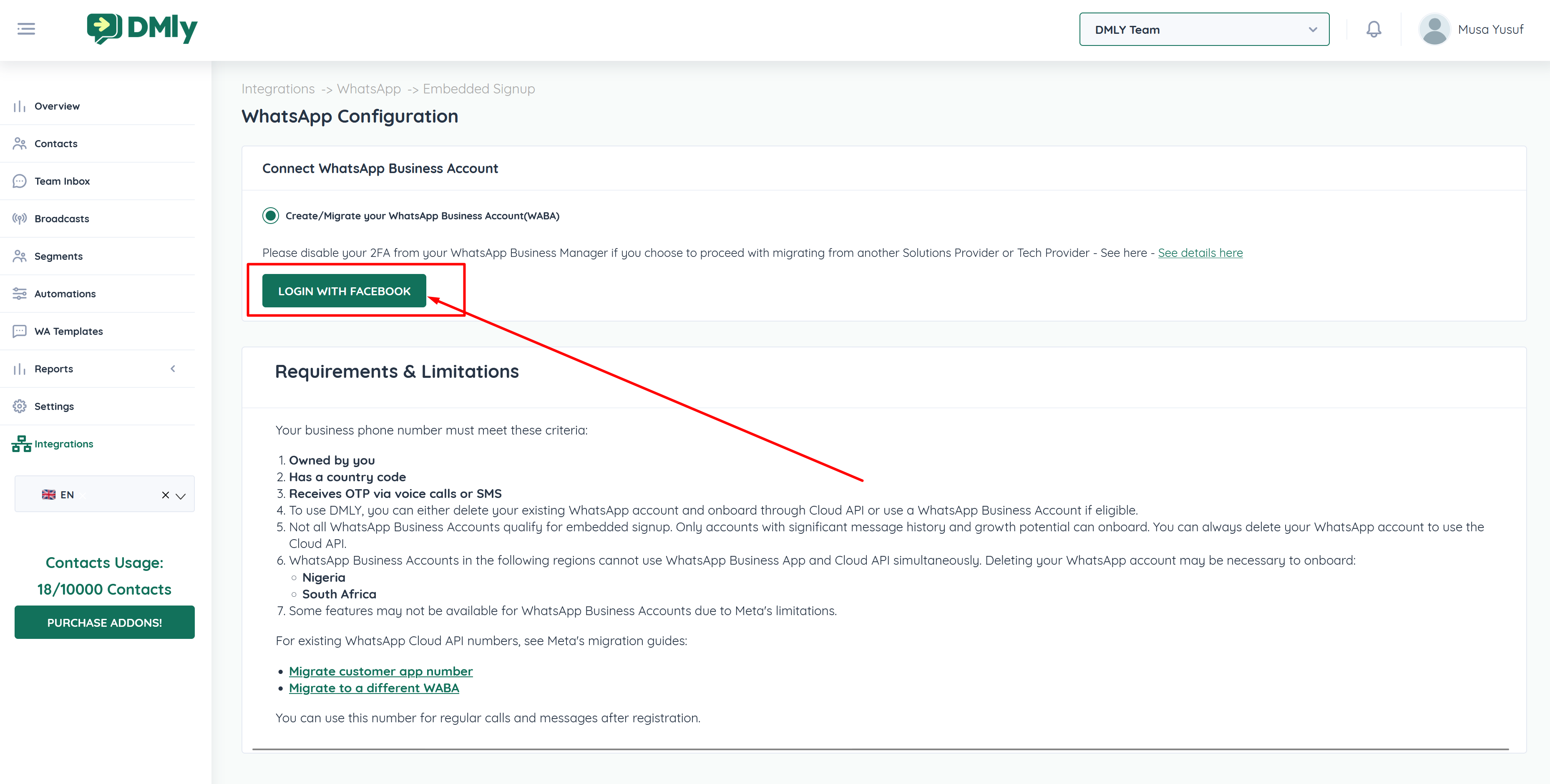
Click Login with Facebook.
Sign in using your Meta (Facebook) account.
Grant all required permissions.
⚠ Important:
If you are migrating from another Solution Provider or Tech Provider, disable Two-Factor Authentication (2FA) in your WhatsApp Business Manager before proceeding. Refer to Meta’s official documentation for guidance.
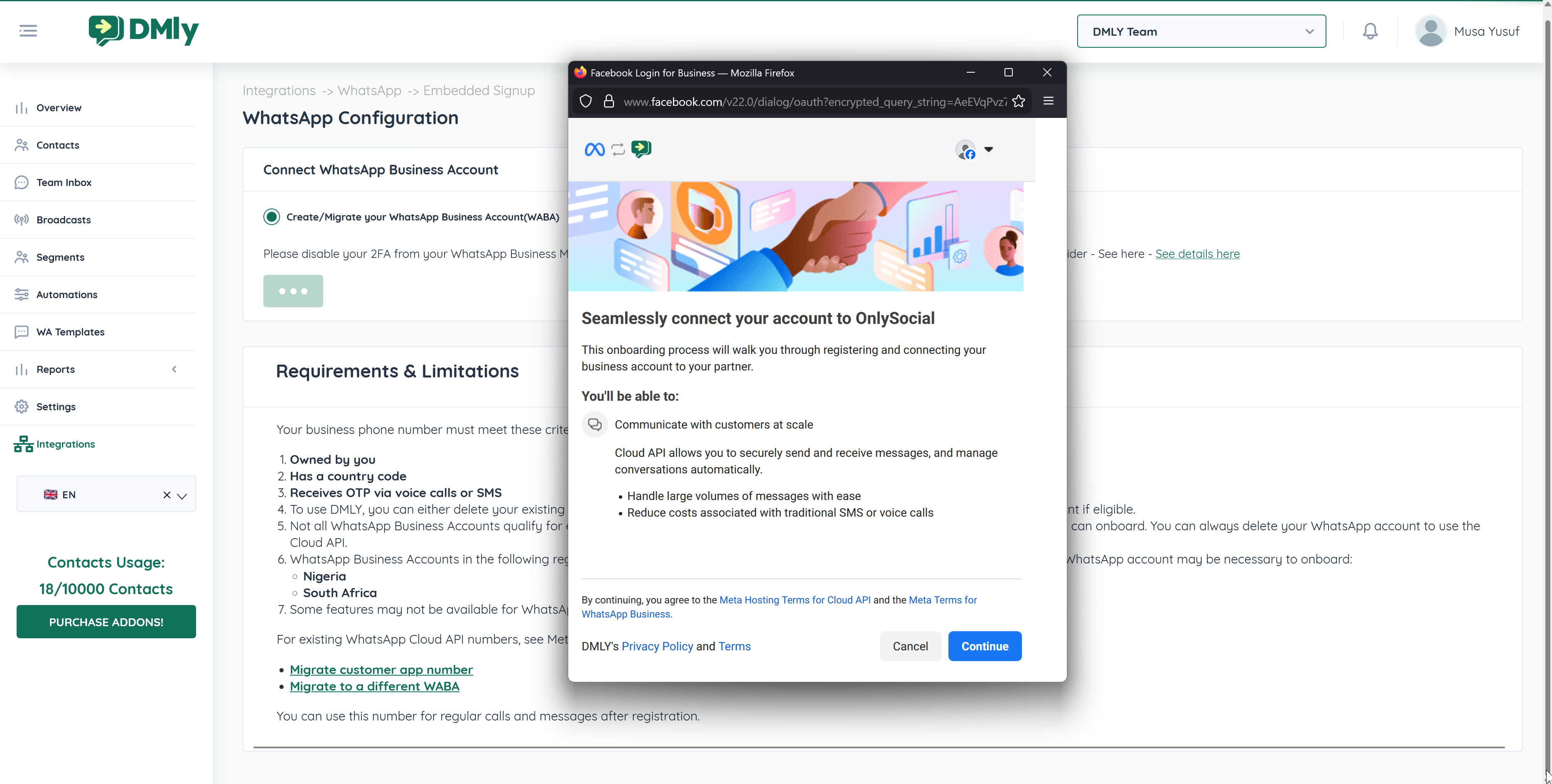
A Facebook pop-up window will appear.
Click Get Started to continue.
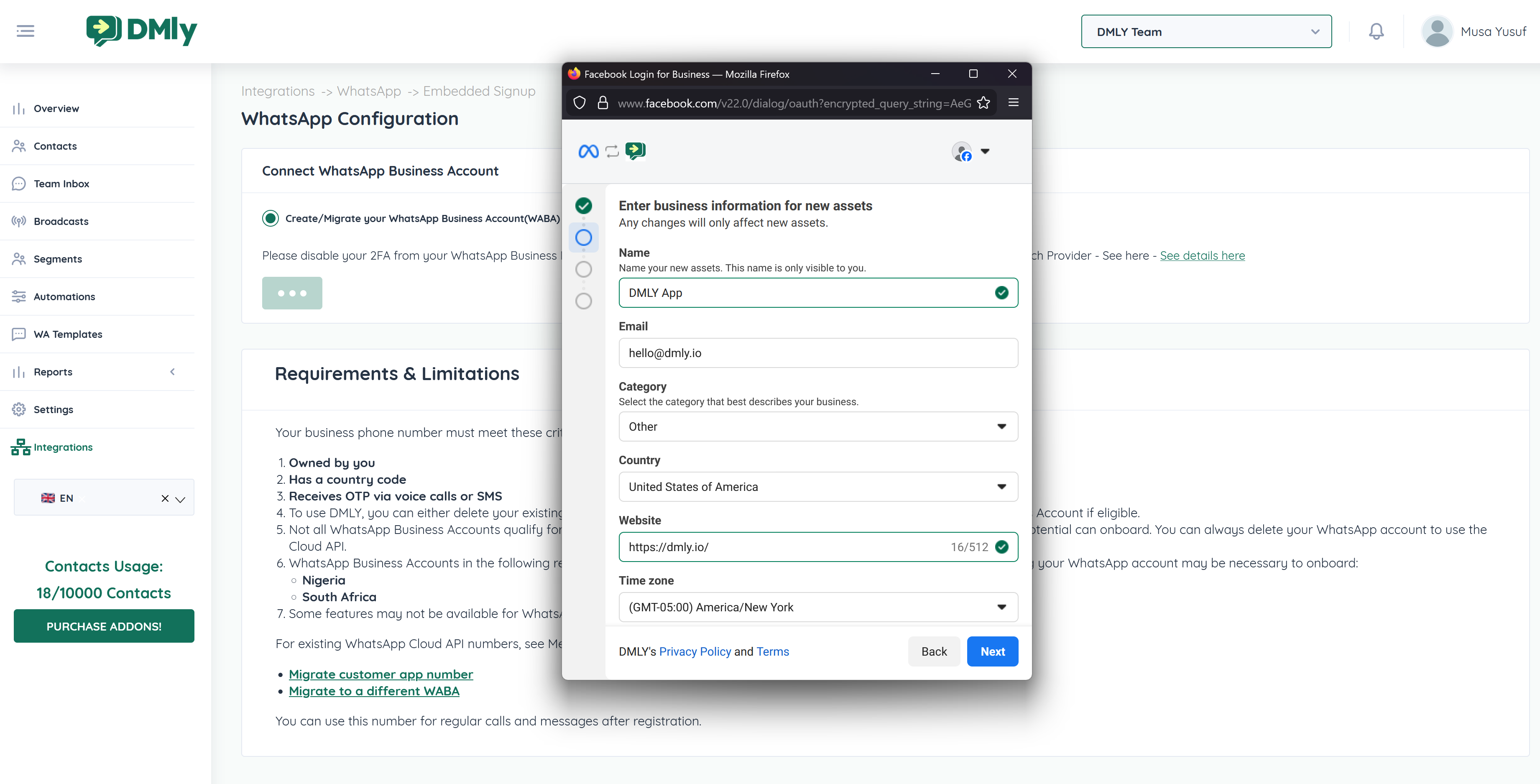
You will be asked to configure your business details.
If you already have a Meta Business Portfolio, select it.
Otherwise, create a new one.
Provide your Business Website or Social Media Profile URL.
Select your Operating Country.
Click Next.
You will be presented with two options:
Use an Existing WhatsApp Business App Number
(Available only in some countries)
Start with a New WhatsApp Phone Number
Example: Select Start with a New WhatsApp Phone Number if you are setting up a fresh number
.
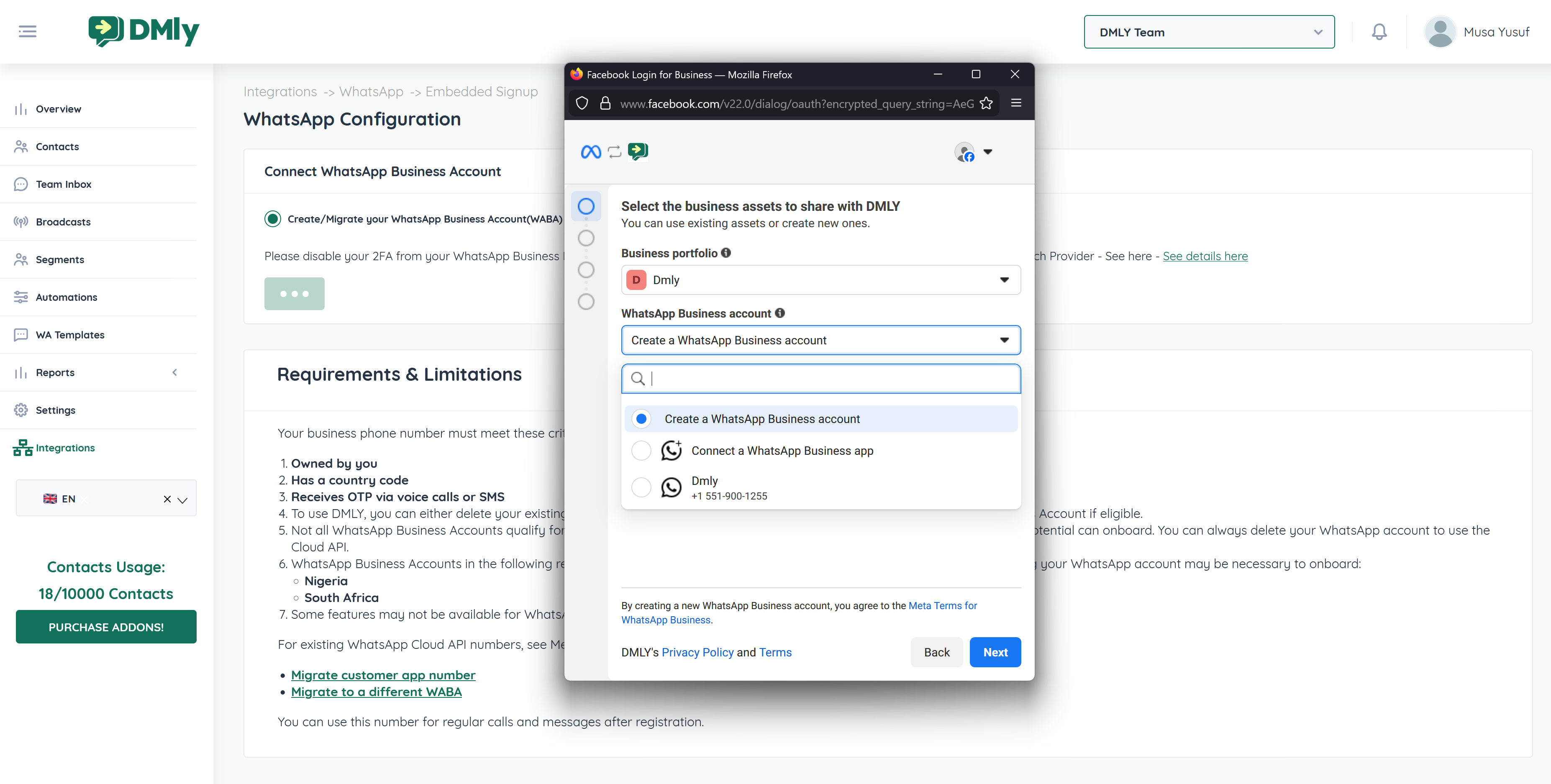
Select Create a New WhatsApp Business Account.
Choose Create a New WhatsApp Business Profile.
Click Next.
⚠ Important:
When using WhatsApp Embedded Signup in DMLY, always select Create a WhatsApp Business Account instead of linking an existing WABA already connected to another platform. Creating a new account helps prevent billing and payment-related conflicts.
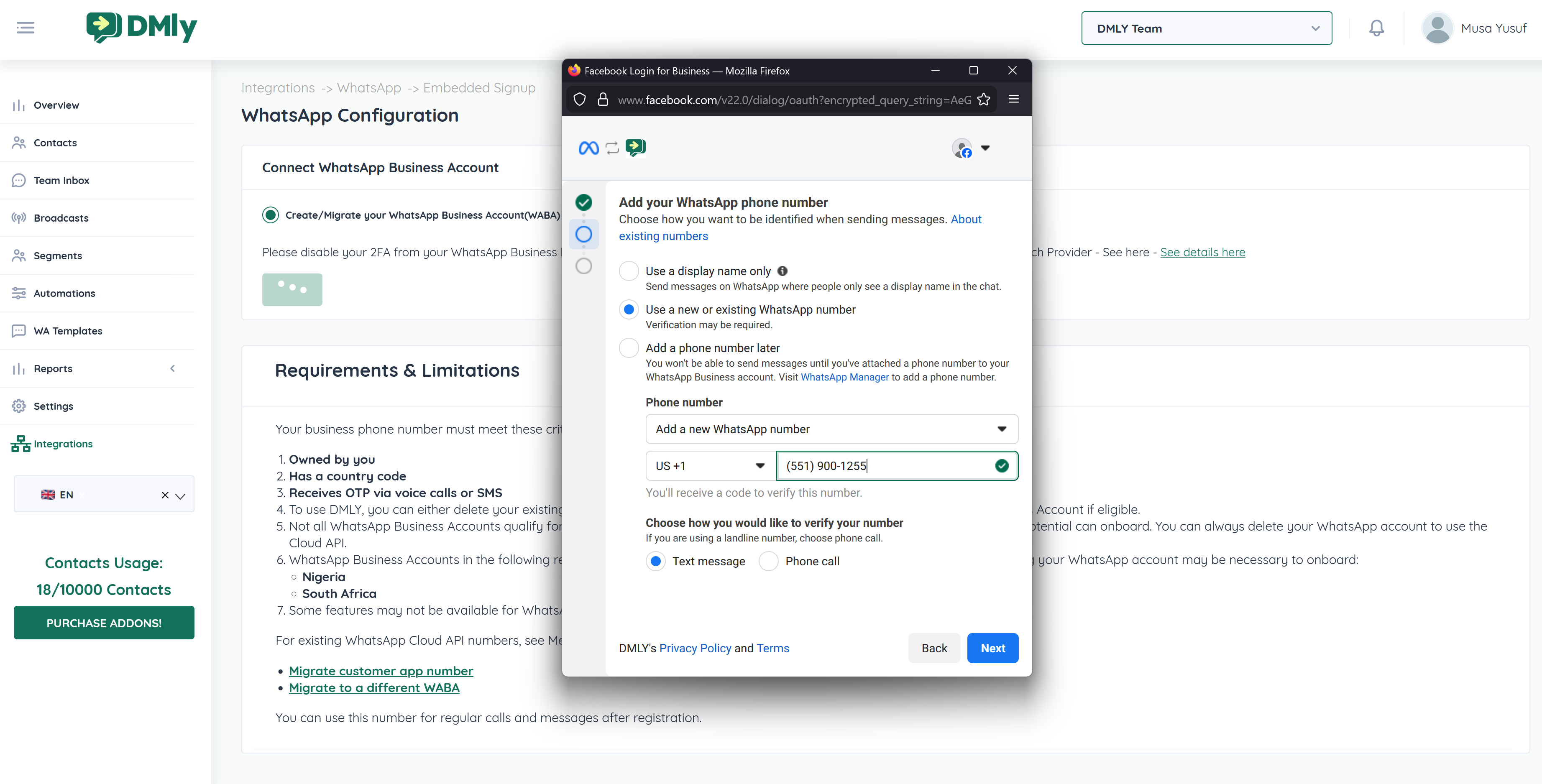
Select your Country Code.
Enter your Phone Number.
Choose verification method:
SMS
Phone Call
Enter the verification code received.
Click Next.
⚠ The phone number must not be actively registered on the WhatsApp or WhatsApp Business App.
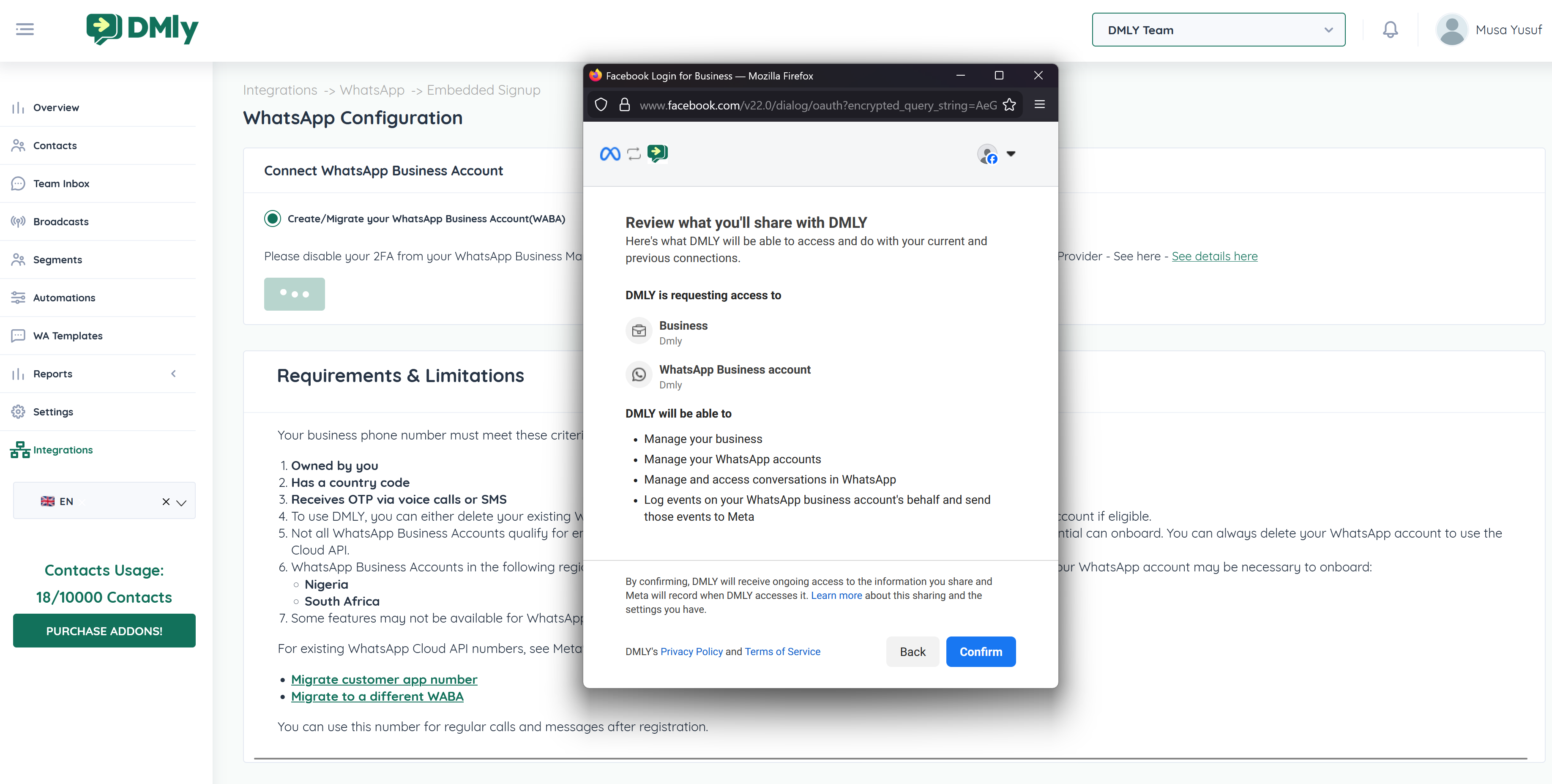
Click Continue.
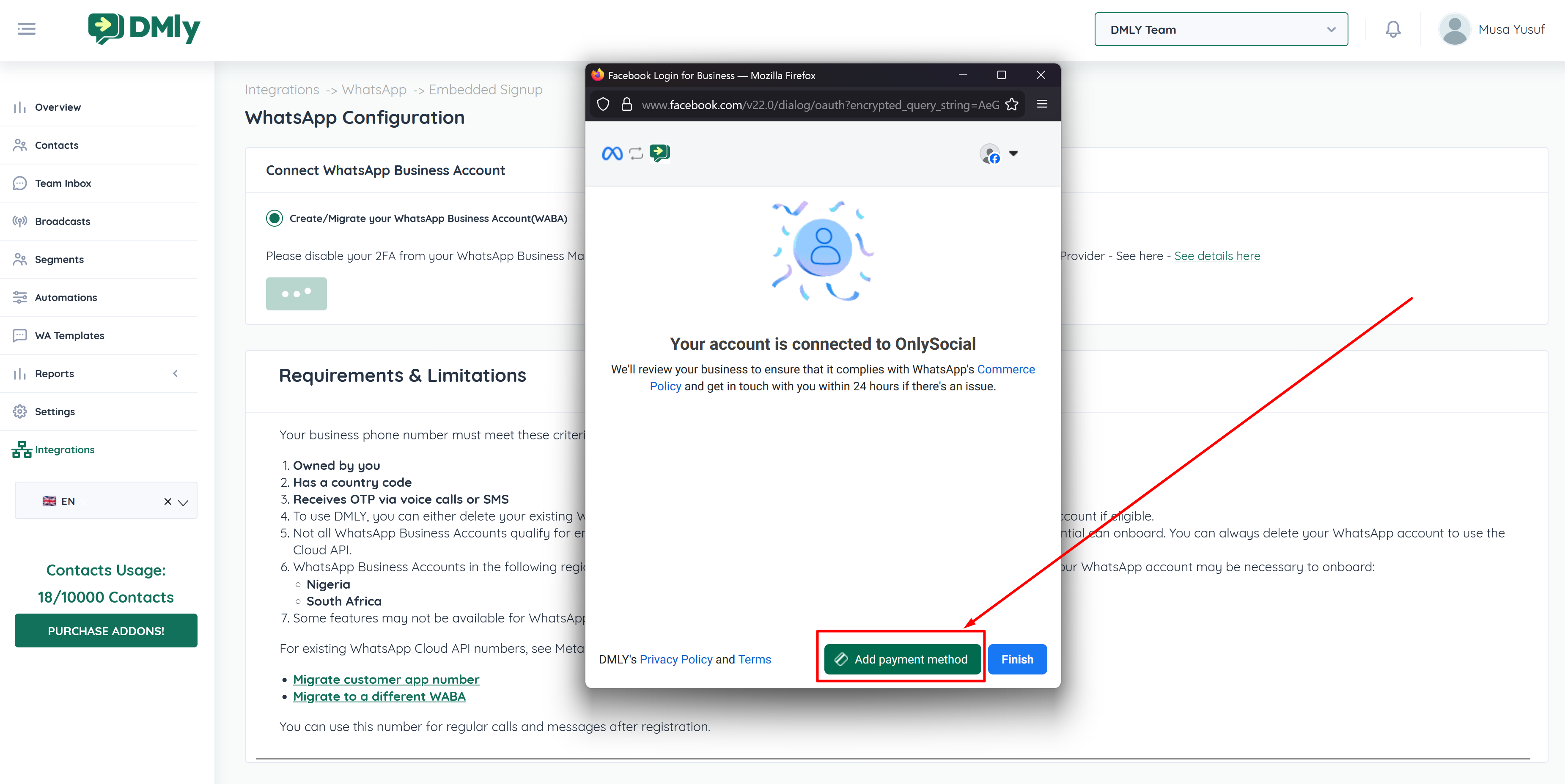
Click Add Payment to enter your payment method.
⚠ Payment Required:
Adding a payment method is mandatory to send WhatsApp template messages.
After adding your payment details, click Finish.
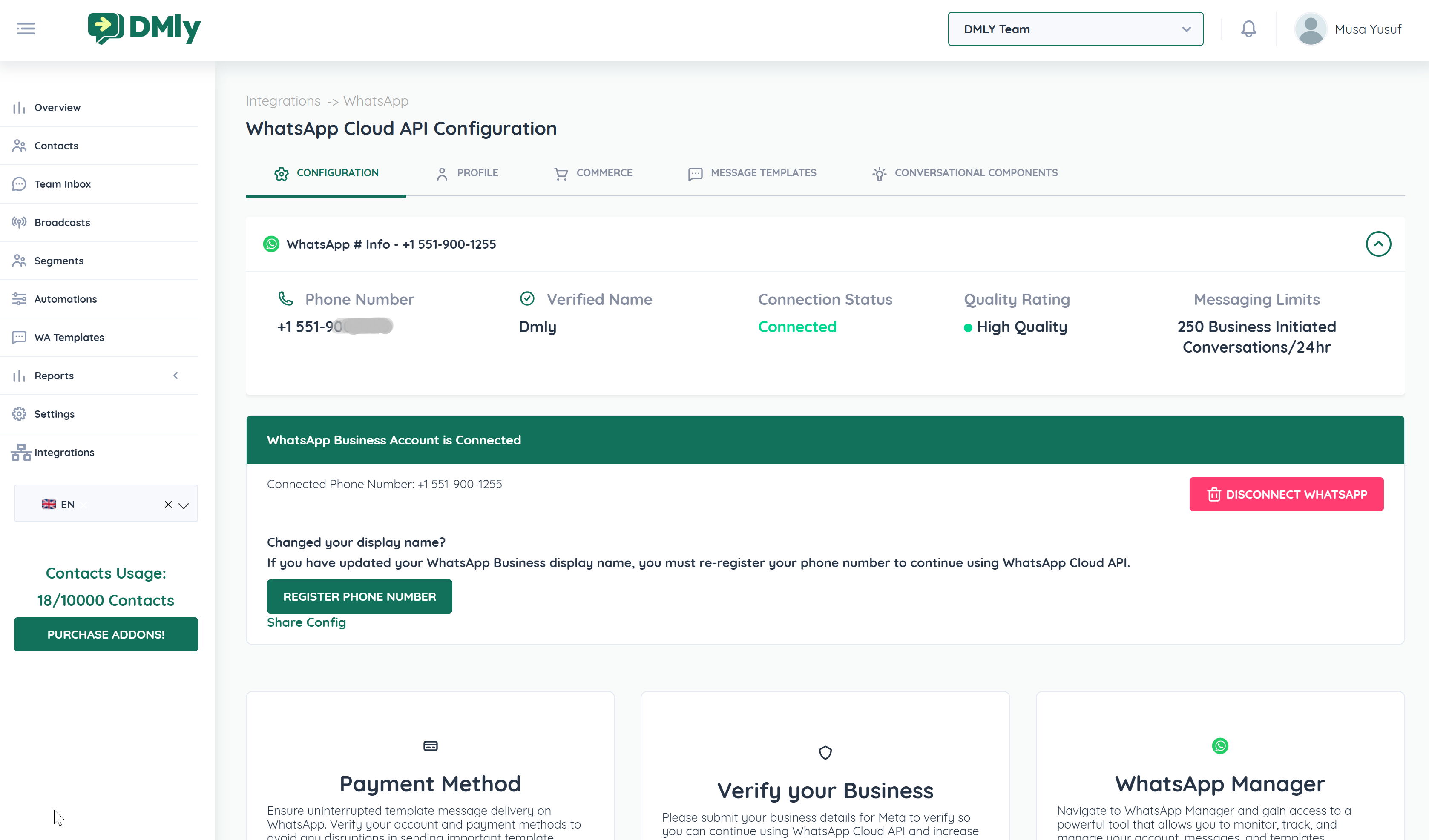
Once setup is complete:
Go to the Team Inbox in DMLY.
Send a test message.
Confirm message delivery.
If the message is delivered successfully, the connection is complete.
WhatsApp Business (Cloud API) is now connected to DMLY.
You can now:
Send and receive WhatsApp messages
Create automations
Submit and send WhatsApp templates
Run broadcast campaigns
Manage conversations from the unified inbox
