DMLY allows workspace owners to either delete a workspace permanently or transfer ownership to another user. These actions help you manage access responsibly when teams change or when a workspace is no longer needed.
Only the Workspace Owner can delete or transfer a workspace.
Administrators and Staff cannot perform these actions.
Deleting a workspace permanently removes all data associated with it. This action cannot be undone.
When a workspace is deleted, the following data is permanently removed:
Contacts
Messages and conversations
Automations and workflows
Integrations and API keys
Templates and settings
Logs and reports
⚠ If the workspace has an active subscription, you must cancel it first to avoid future charges.
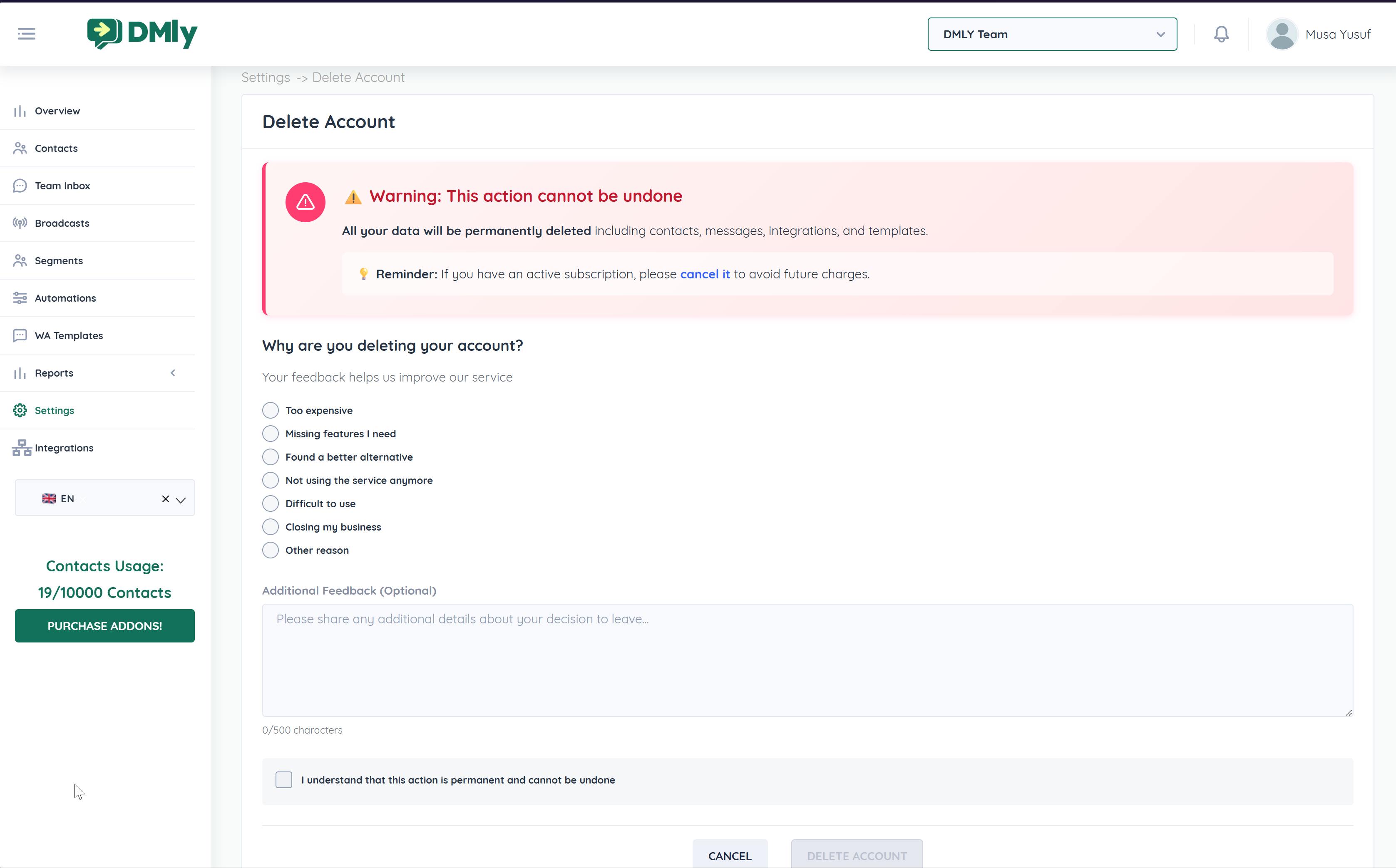
Log in to DMLY
Select the workspace you want to delete
Go to Settings → Delete Account
Review the warning message carefully
Select a reason for deleting the workspace (optional but recommended)
Add additional feedback if needed
Check the confirmation box acknowledging that the action is permanent
Click Delete Account
Once confirmed, the workspace and all its data are permanently deleted.
If you no longer want to manage a workspace but want to keep it active, you can transfer ownership to another team member.
The recipient must already be a team member in the workspace
The recipient must have Administrator access
You must be the current Owner
Log in to DMLY
Select the workspace you want to transfer
Go to Settings → Team Members
Locate the user you want to transfer ownership to
Edit the user’s role and assign Owner
Confirm the change
Once completed:
The new owner gains full control of the workspace
Your role is downgraded automatically (unless reassigned)
The workspace remains active
All data, conversations, and settings remain unchanged
Billing and subscription control moves to the new owner
Team access and permissions continue as configured
Transfer ownership before leaving an organization
Ensure the new owner understands billing responsibilities
Export important data before deleting a workspace
Deactivate users who no longer need access
Avoid deleting workspaces unless absolutely necessary
