Add a branded Live Chat widget to your website and connect multiple messaging channels like WhatsApp, Instagram, Messenger, and Telegram — all in one place.
The DMLY Live Chat widget allows you to capture website visitors and manage conversations directly from your unified Team Inbox.
Open the DMLY app.
Log in with your credentials.
Select the appropriate workspace.
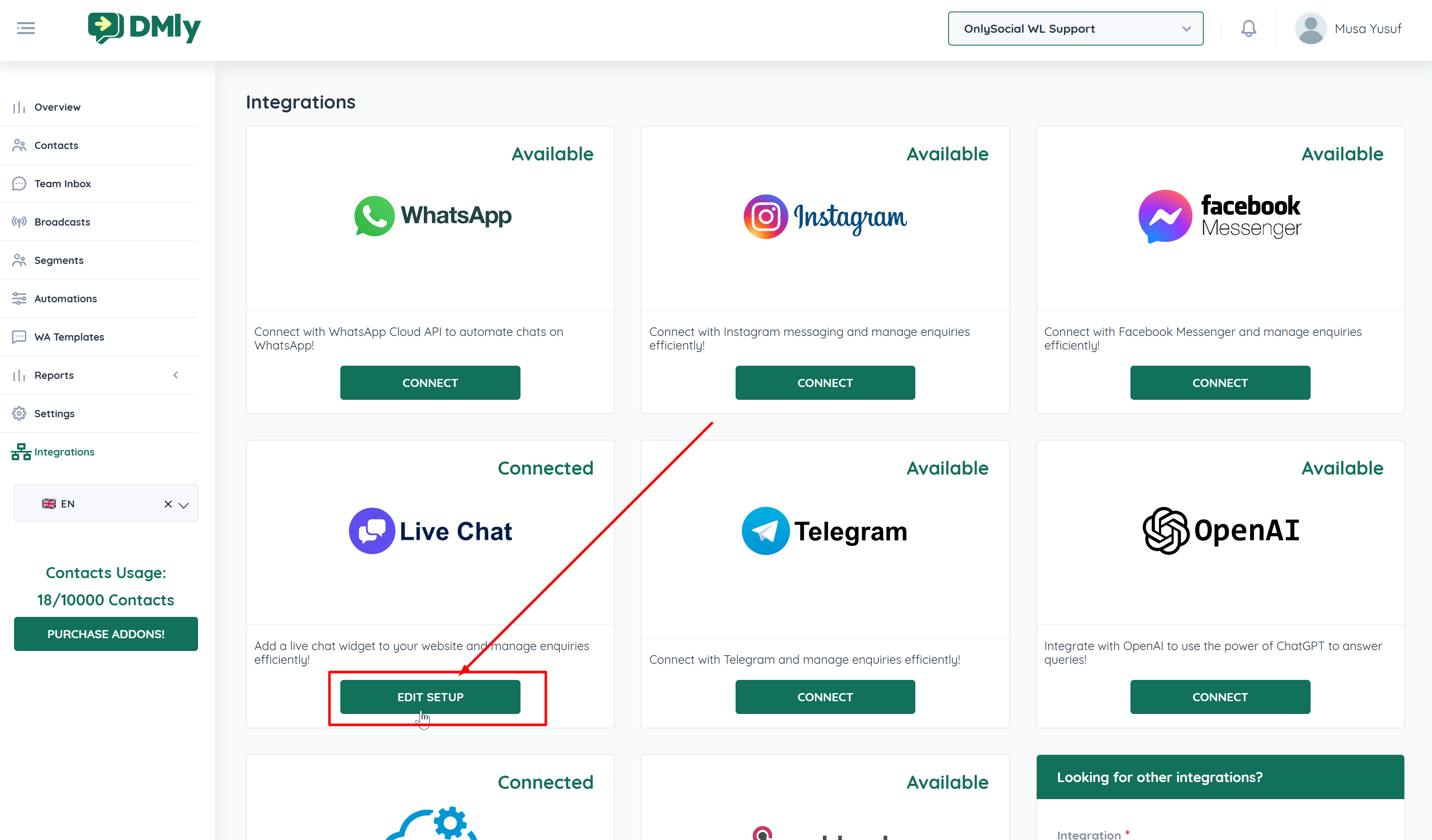
Go to Integrations → Live Chat Connect.
Upload your logo or brand icon.
Recommended size: 256 × 256 pixels
Use a circular format for best appearance.
This icon will appear in the chat widget.
You can personalize the widget to match your brand.
Configure the following:
Primary Brand Color
Widget Title (e.g., “Chat With Us”)
Subtitle (e.g., “We’re here to help”)
These elements control how the widget appears to visitors.
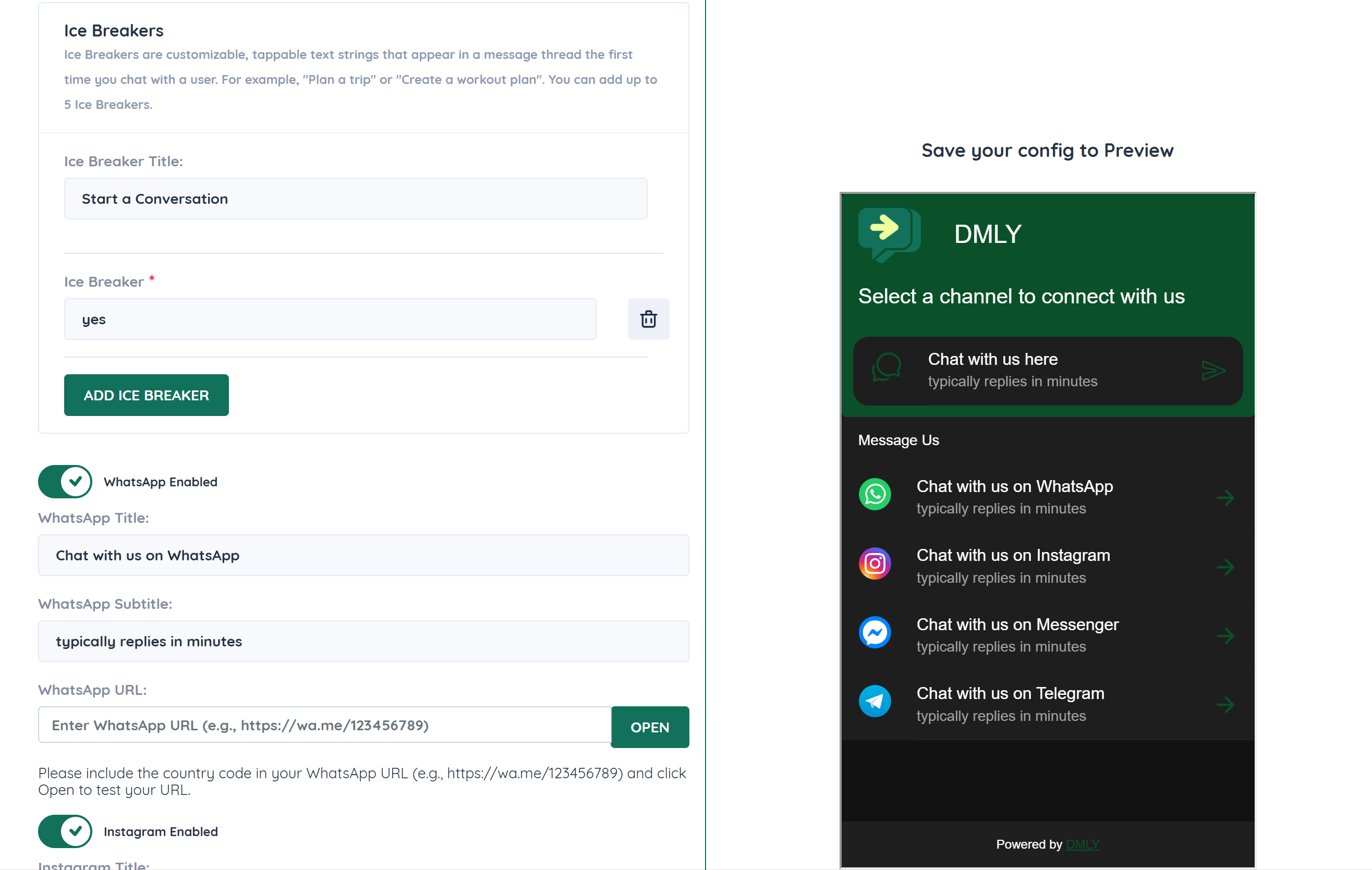
Add a welcome message that appears when users visit your website.
Example:
“Hi there! How can we help you today?”
0 = Show instantly
Any other number = Display after that number of seconds
This helps engage visitors proactively.
Toggle Live Chat ON
Review the Title and Subtitle
Confirm branding settings
Once enabled, the widget becomes active after installation.
Ice Breakers are clickable prompts that guide first-time visitors.
Examples:
“Talk to Support”
“Request a Demo”
“Book Appointment”
You can add up to 5 Ice Breakers.
These improve engagement and speed up conversation initiation.
You can embed external messaging platforms directly inside the Live Chat widget.
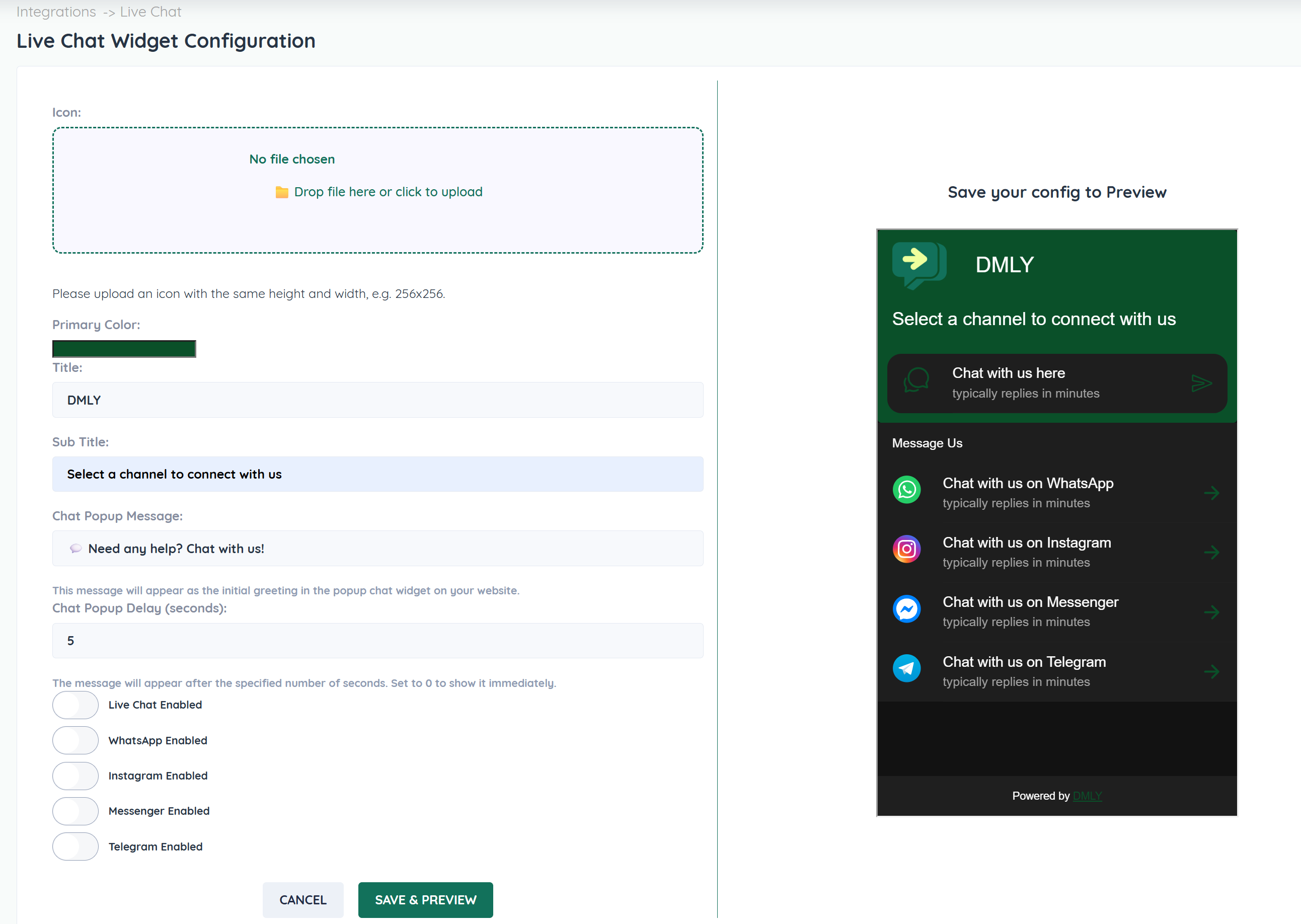
Enable WhatsApp
Add:
Title
Subtitle
WhatsApp URL
URL Format:
https://wa.me/<number_with_country_code>
Example:
https://wa.me/911234567890
Enable Instagram
Add:
Title
Subtitle
Instagram URL
URL Format:
https://ig.me/m/<username>
⚠ Do not include @
Example:
https://ig.me/m/yourbrand
Enable Messenger
Add:
Title
Subtitle
Messenger URL
URL Format:
https://m.me/<PageUsername>
Or use your Page ID for newer pages.
Example:
https://m.me/yourbusinesspage
Enable Telegram
Add:
Title
Subtitle
Telegram URL
URL Format:
https://t.me/<username>
⚠ Do not include @
Example:
https://t.me/yourchannel
Click Save & Preview to view the live widget preview on the right side of the screen.
Review:
Branding
Colors
Text
Ice Breakers
Channel buttons
Scroll down to the Installation Code
Copy the code snippet
Paste it before the closing:
</body>tag in your website’s HTML.
After installation, the Live Chat widget will appear on your website.
Once installed:
Website visitors can start live conversations
Messages appear instantly in the Team Inbox
Conversations can be assigned to team members
Automations can respond to live chat messages
Multi-channel options are available within the widget
Match widget color to your brand
Keep greeting messages short and friendly
Use Ice Breakers to guide visitors
Test on desktop and mobile
Ensure code is placed before </body> tag
