Integrating OpenAI with DMLY enables powerful AI capabilities such as:
Smart automated customer support
AI-powered conversation handling
Lead qualification
Context-aware responses
Intelligent bot-to-human transfers
Follow the steps below to securely connect your OpenAI account.
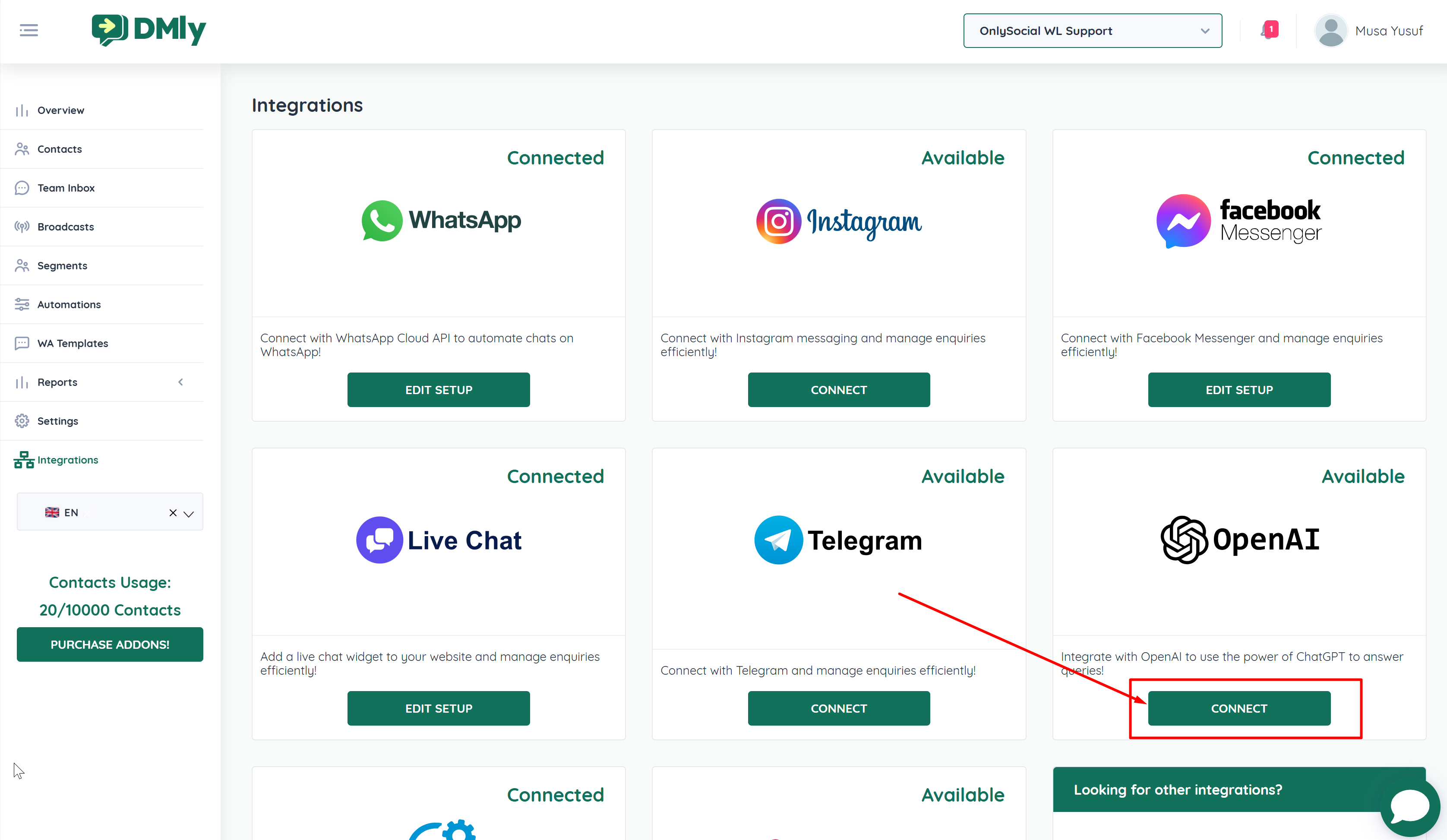
Open your DMLY dashboard.
Navigate to Integrations from the left sidebar.
Click on OpenAI Connect.
If you already have an OpenAI account:
Visit:
👉 https://platform.openai.com/
Log in to your account.
If you don’t have one:
Click Sign Up
Enter your email and details
Verify your phone number
Create your Organization and Project
To use the OpenAI API, billing must be active.
Click the Settings icon (top-right corner).
Go to Billing → Overview
Click Add Payment Details
Enter your card information and billing address.
⚠ Without billing enabled, your API calls will fail.
In the OpenAI dashboard, go to API Keys in the left menu.
Click Create New Secret Key
Name it (e.g., DMLY Integration)
Click Create
Copy the API key immediately (it will not be shown again).
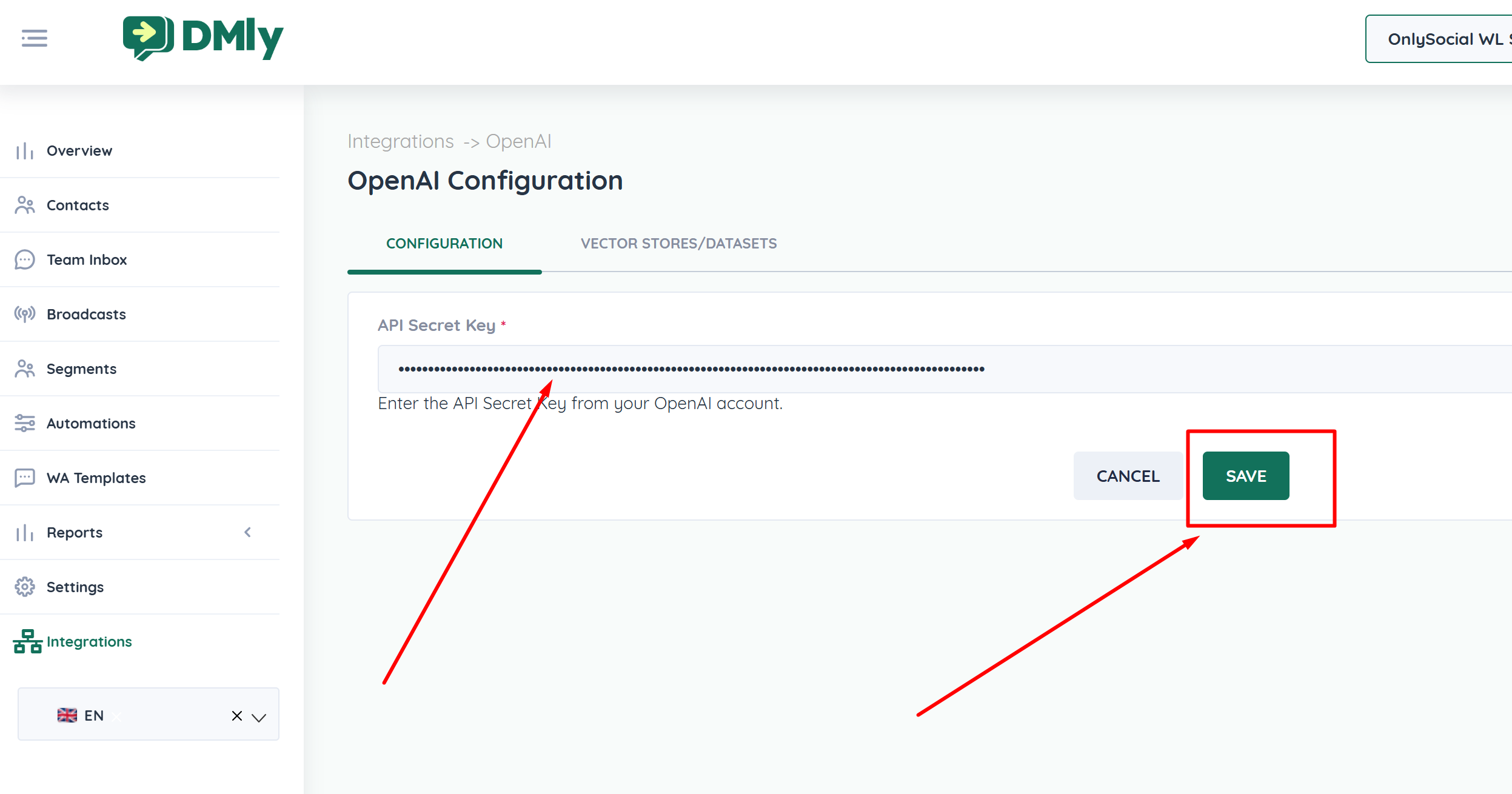
Return to DMLY → Integrations → OpenAI
Paste your API key into the API Key field.
Click Save
If valid, your OpenAI account will be successfully connected.
To keep your integration secure and cost-efficient:
Keep your API key private and never share it publicly.
Do not commit your API key into public repositories.
Monitor usage and costs in your OpenAI dashboard regularly.
Set usage alerts in OpenAI to avoid unexpected charges.
Rotate your API key periodically for enhanced security.
If a key is exposed, revoke it immediately and generate a new one.
If the integration fails:
The API key is copied correctly (no extra spaces)
Billing is active
The key has not been revoked
Your OpenAI account is in good standing
Visit:
👉 https://status.openai.com/
Recreate a new API key and try again.
Disconnect and reconnect the integration in DMLY.
Contact DMLY (WhautoChat) support if the issue persists.
Once connected, you can:
Build AI-powered automation workflows
Enable GPT responses inside conversations
Automate FAQs and lead qualification
Combine AI with round-robin staff assignment
Improve response speed and scalability
