Maintaining a high-quality WhatsApp rating and respecting customer preferences is essential for long-term messaging success. DMLY makes it easy to manage marketing opt-outs automatically using keyword-based automation and smart segmentation.
This guide walks you through setting up a clean, compliant marketing system that automatically handles unsubscribes and resubscriptions.
Protects your WhatsApp quality rating
Reduces spam complaints and blocks
Ensures compliance with Meta’s messaging policies
Keeps your broadcast segments clean and engaged
Improves overall campaign performance
When creating WhatsApp marketing templates in DMLY, always include a clear opt-out instruction.
Recommended footer:
Reply “STOP” to unsubscribe from our updates.
This ensures:
Transparency
Compliance
Clear customer control over marketing preferences
DMLY allows you to automatically detect unsubscribe requests using keyword triggers.
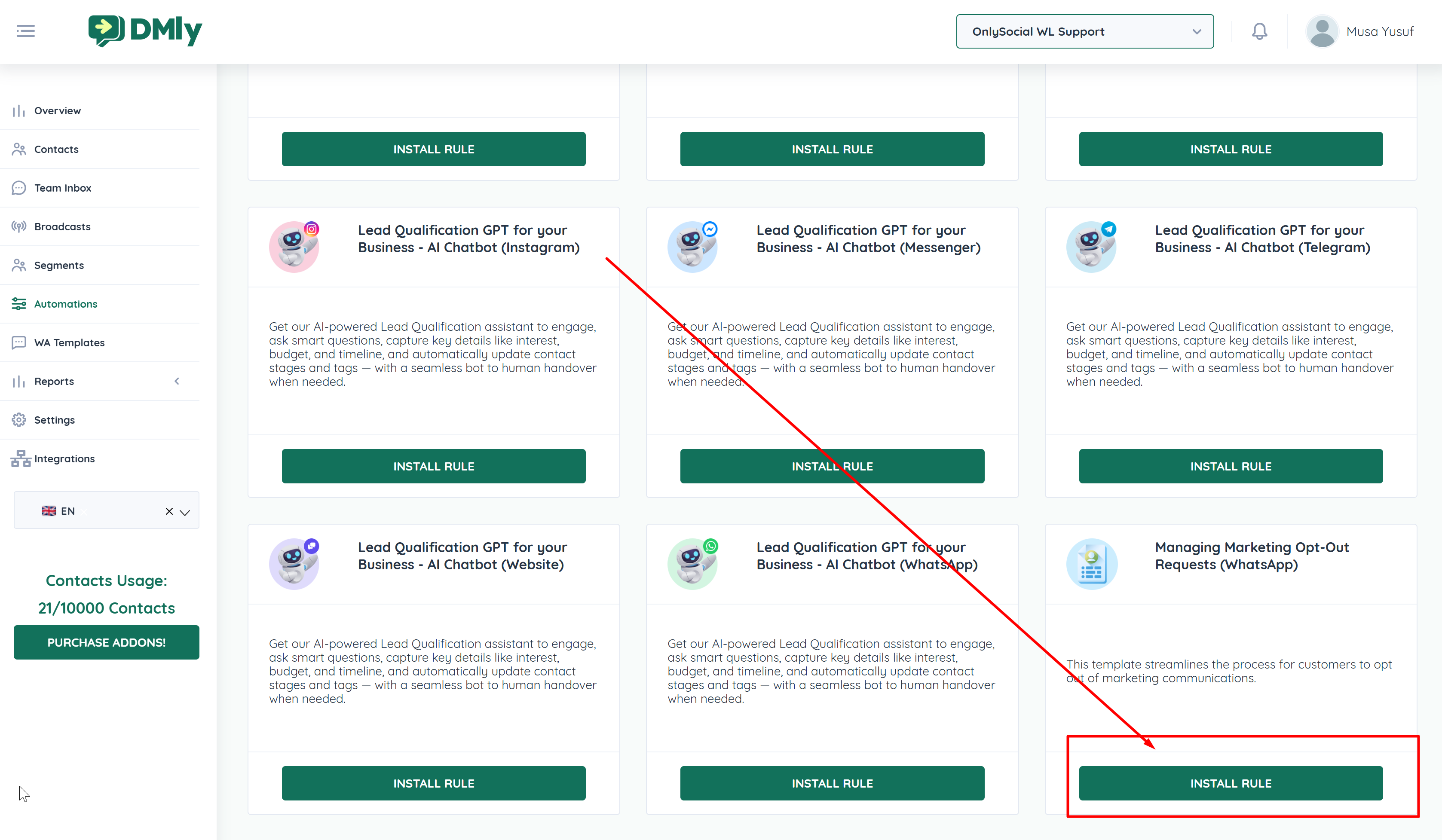
Open the DMLY app
Go to Automations in the sidebar
Click Add Rule
Navigate to Marketing Opt-Out Management
Click Install Rule
When a contact sends:
STOP
Stop
stop
(as a standalone word)
The system automatically:
Detects the message using a regex pattern
Applies the “Unsubscribe” tag to the contact
Excludes the contact from future marketing broadcasts
If a contact sends “Stop marketing” (multiple words), the rule may not trigger depending on configuration.
The automation is case-insensitive.
The tag is applied instantly.
To prevent sending messages to unsubscribed contacts, create a dynamic segment that excludes them.
Go to Segments
Click Add Segment
Name it (e.g., “Marketing Contacts”)
Under Exclude Contacts with Tag, select:
Unsubscribe
Important: Select the correct Workspace to avoid including contacts from all workspaces.
Save the segment
Contacts who send “STOP” are automatically tagged.
Tagged contacts are dynamically excluded from the segment.
No manual cleaning required.
When creating a broadcast:
Select your newly created clean segment
Ensure the correct workspace is selected
Send your campaign confidently
This guarantees:
Only opted-in contacts receive marketing messages
Unsubscribed users remain excluded
Your campaigns stay compliant
Before launching large campaigns:
Send a marketing template to yourself or a test number.
Reply with “STOP”.
Check the contact profile:
Confirm the Unsubscribe tag is applied.
Verify the contact no longer appears in your marketing segment.
Customers can easily opt back in if they change their mind.
If a contact sends:
RESUBSCRIBE
Or clicks a resubscribe button (if configured)
DMLY can:
Automatically remove the Unsubscribe tag
Re-add them to your marketing segment
Restore eligibility for future broadcasts
This ensures:
Customer control
Seamless re-engagement
Clean marketing lists
Always include an opt-out instruction in templates
Never manually remove the Unsubscribe tag without consent
Regularly review your broadcast segments
Use workspace-level targeting to avoid cross-workspace sends
Monitor delivery status and engagement metrics
