If your WhatsApp Business API account has been disabled, banned, or restricted, it can disrupt your customer communication immediately. The good news is: in many cases, accounts can be reviewed and reinstated — if the issue is properly identified and resolved.
This guide explains:
Why WhatsApp Business API accounts get disabled
How to check the exact reason
How to request a review
What to do if review isn’t available
Common triggers include:
❌ Website compliance issues
🚫 Spam reports or user blocks
⚠ Messaging policy violations
💳 Business payment or billing issues
📉 Poor quality rating
🚷 Restricted industry or prohibited content
Before taking action, you must first check the official restriction reason inside WhatsApp Manager.
Log in to WhatsApp Manager
👉 https://business.facebook.com/latest/whatsapp_manager/
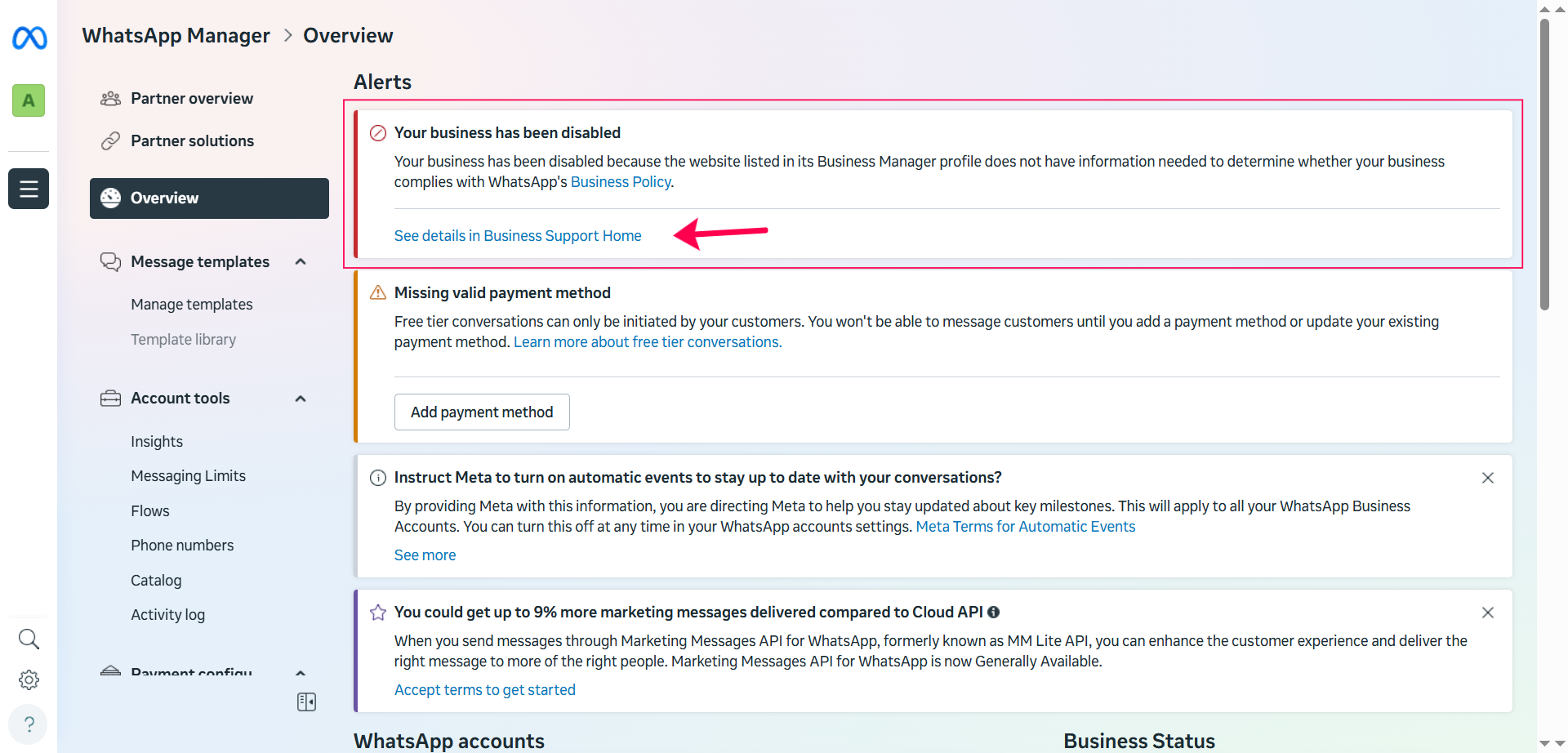
Look for an “Account Disabled” or restriction alert at the top.
Click “See details in Business Support Home” to open the Account Review page.
On that page, Meta will show the exact reason your account was restricted.
If the restriction is related to your website:
Make sure:
Your URL is accessible and working
Business name matches your WhatsApp profile
Contact information is clearly visible
Services are clearly described
No misleading or restricted content exists
Update your website before requesting a review.
If the reason mentions SPAM, it usually means:
Many users blocked your number
Messages were sent without proper opt-in
Messaging frequency was too high
Promotional content was unclear or aggressive
To fix:
Stop sending bulk campaigns temporarily
Only message users with verified opt-in
Improve message clarity and value
Reduce frequency
Spam-related bans can sometimes be reversed after improving messaging practices.
If WhatsApp mentions a policy violation:
Review WhatsApp Business & Commerce Policies
Remove restricted content
Ensure your use case matches approved categories
Adjust templates if needed
Do not request review until all violations are corrected.
If billing or eligibility is mentioned:
Check your payment method in WhatsApp Manager
Ensure ad accounts are active
Confirm no outstanding payment issues
Verify business details in Meta Business Manager
After fixing the issue:
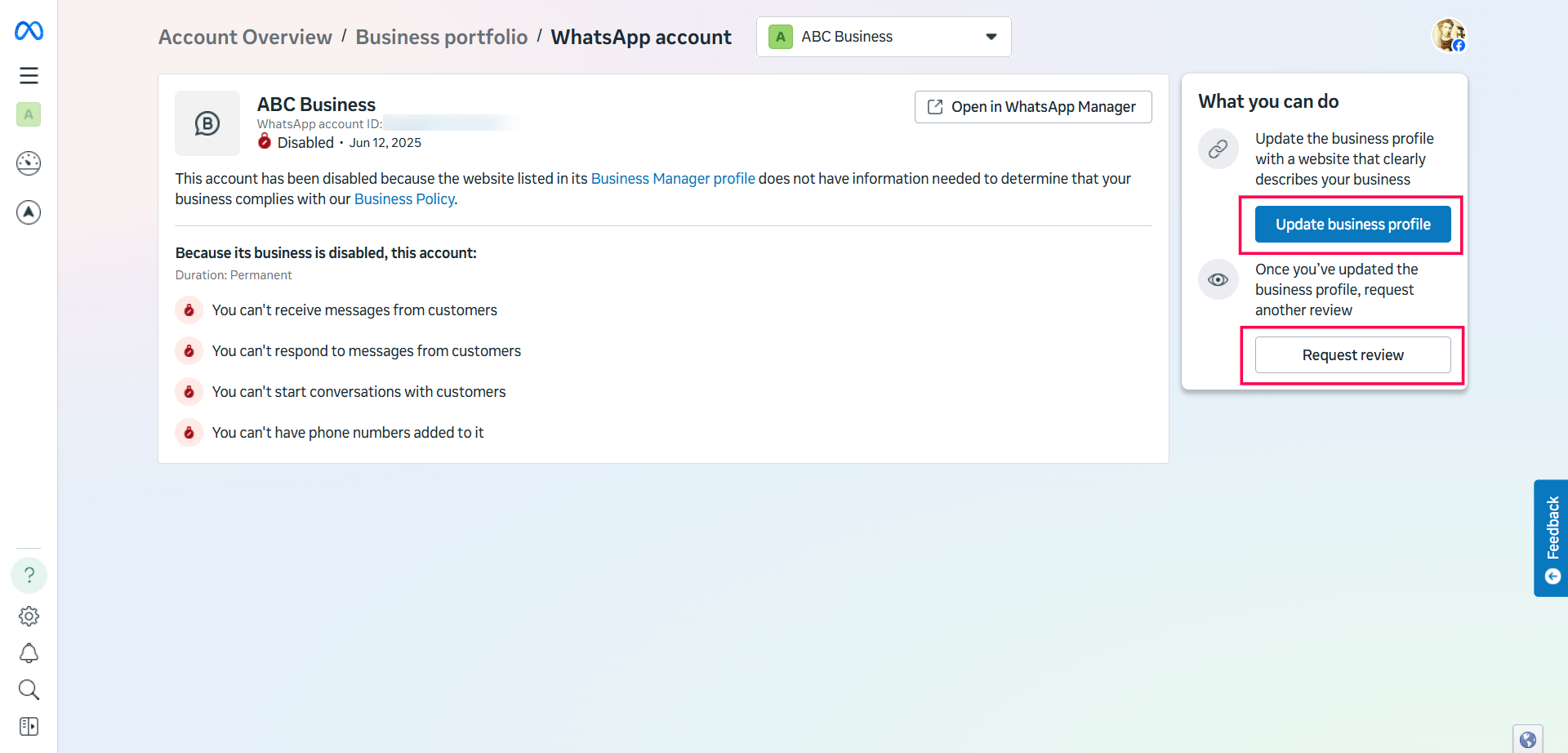
Go back to the Account Review page
Click “Request Review”
If the button is available, proceed
If the button is disabled, see the section below.
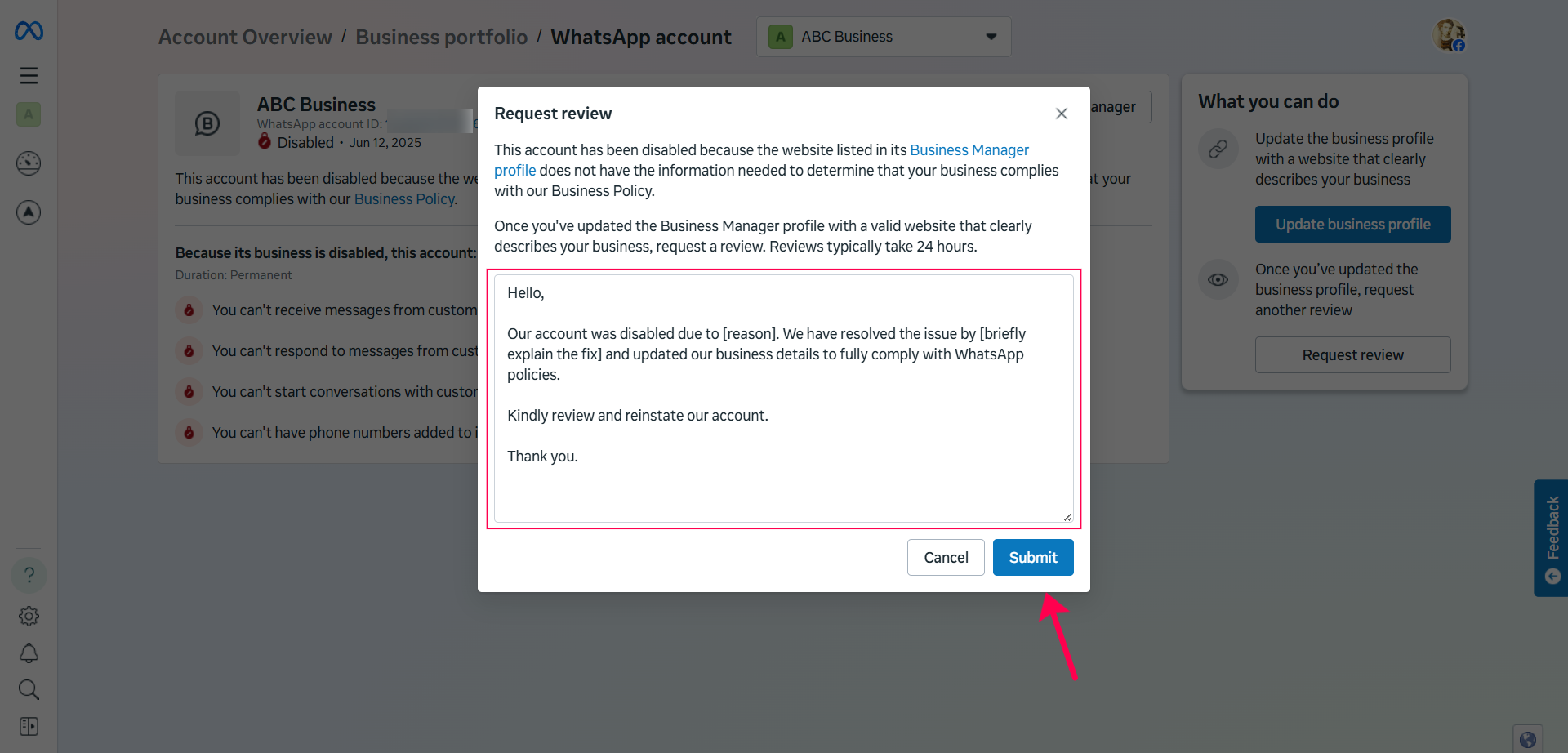
In your review message, clearly explain:
What caused the issue
What actions you’ve taken to fix it
How you will prevent it in the future
Hello,
Our account was disabled due to [reason]. We have reviewed and resolved the issue by [explain fix].
We have ensured full compliance with WhatsApp policies moving forward.
Kindly review our account and consider reinstating access.
Thank you.
You may include:
Updated website links
Proof of user opt-in
Clarification of your messaging use case
Keep it short, professional, and factual.
Reviews are often processed within a few hours to a few days.
If approved → your account will be reinstated.
If rejected → carefully review the reason, fix remaining issues, and request again (if allowed).
If:
The “Request Review” button is missing
Or you cannot submit a review
This usually indicates a permanent ban.
In that case:
The number cannot be reinstated
You must register a new phone number
Create a new WhatsApp Business API account
Ensure full compliance before sending campaigns
Note: No provider can override a permanent ban once Meta marks it as final.
Always collect proper user opt-in
Avoid cold messaging
Send relevant and valuable content
Monitor quality rating regularly
Keep website and business details updated
Follow WhatsApp approved use cases
If your WhatsApp Business API account is disabled:
Do not panic
Do not submit repeated review requests
Fix the issue first, then request review
Proper compliance and professional communication significantly increase reinstatement chances.
