Broadcast campaigns allow you to send bulk messages to selected contacts or segments directly from DMLY. This is ideal for promotions, updates, announcements, follow-ups, and retargeting campaigns.
You can create a broadcast by navigating to:
Broadcasts → New Broadcast
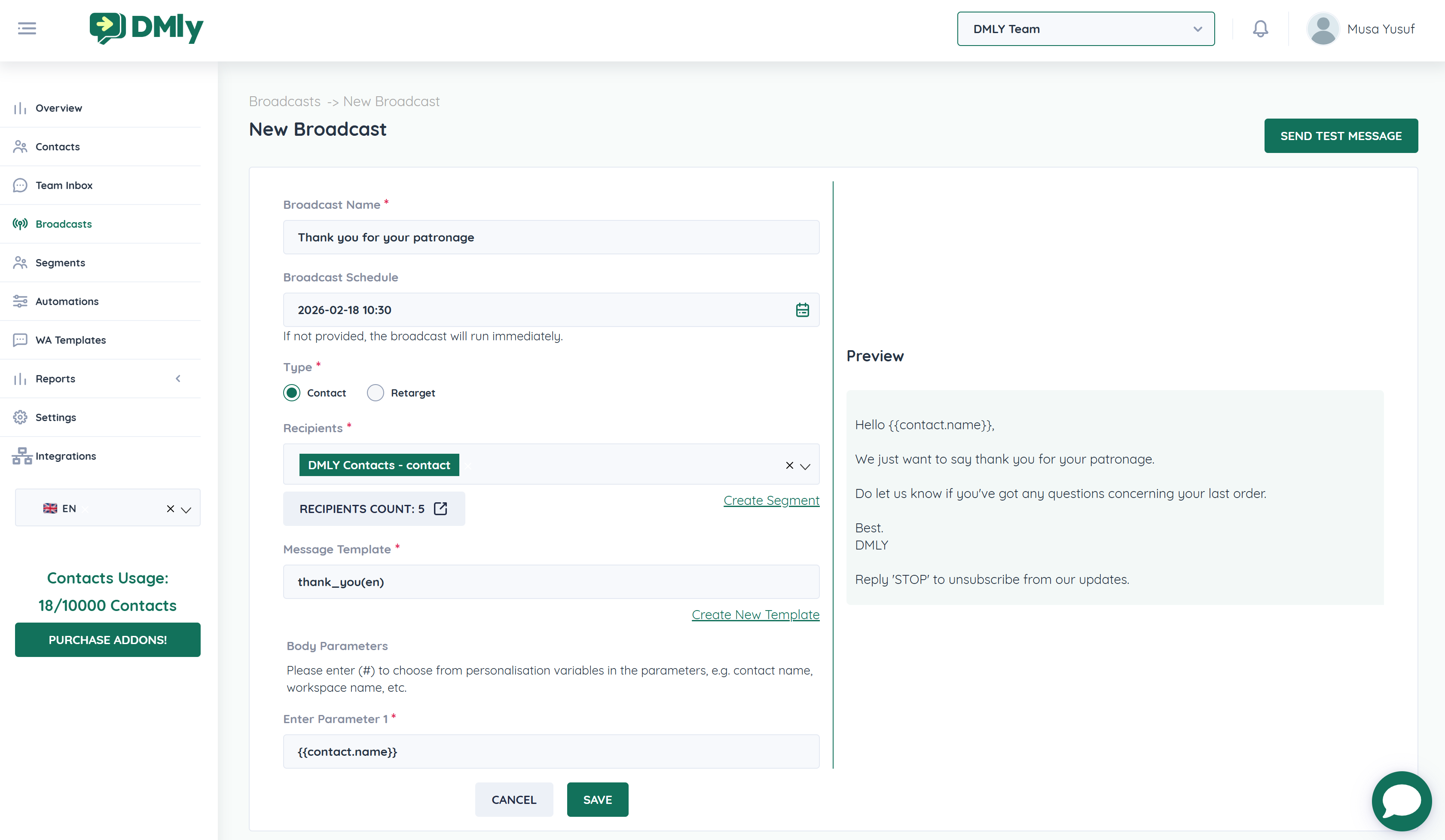
Go to the left sidebar.
Click Broadcasts.
Click New Broadcast.
Give your campaign a clear internal name.
Example:
Thank You Campaign
February Promo
Order Follow-up
This name is only visible to your team.
Choose when the campaign should run.
Select a specific date and time to schedule.
Leave blank to send immediately.
💡 Best Practice: Schedule campaigns during peak engagement hours.
You’ll see two options:
Send to a selected contact list or segment.
Target contacts based on specific behaviors (e.g., message status or engagement).
Select the type that fits your campaign goal.
Under Recipients, choose the audience:
Select an existing contact list
Or click Create Segment to define filters
You can segment contacts by:
Workspace
Pipeline Stage
Tags
Exclude Contact(s) with Tags
Number of Days since last Activity
The system will display the Recipients Count before sending.
For WhatsApp Cloud API broadcasts:
You must select an approved WhatsApp template.
Choose from the dropdown under Message Template.
Or click Create New Template if needed.
⚠ WhatsApp does not allow free-form bulk messages outside the 24-hour window.
You can personalize your message using variables such as:
{{contact.name}}
{{contact.phone}}
{{contact.id}}
{{workspace.name}}
{{workspace.id}}
{{contact.customFields.fieldName}}
In the Body Parameters field:
Enter values required by your template
Type # to select available personalization variables
Example:
Hello {{contact.name}},
Thank you for your recent purchase.
On the right side, you’ll see a Live Preview.
Always review:
Personalization variables
Formatting
Spelling
Unsubscribe instructions (if required)
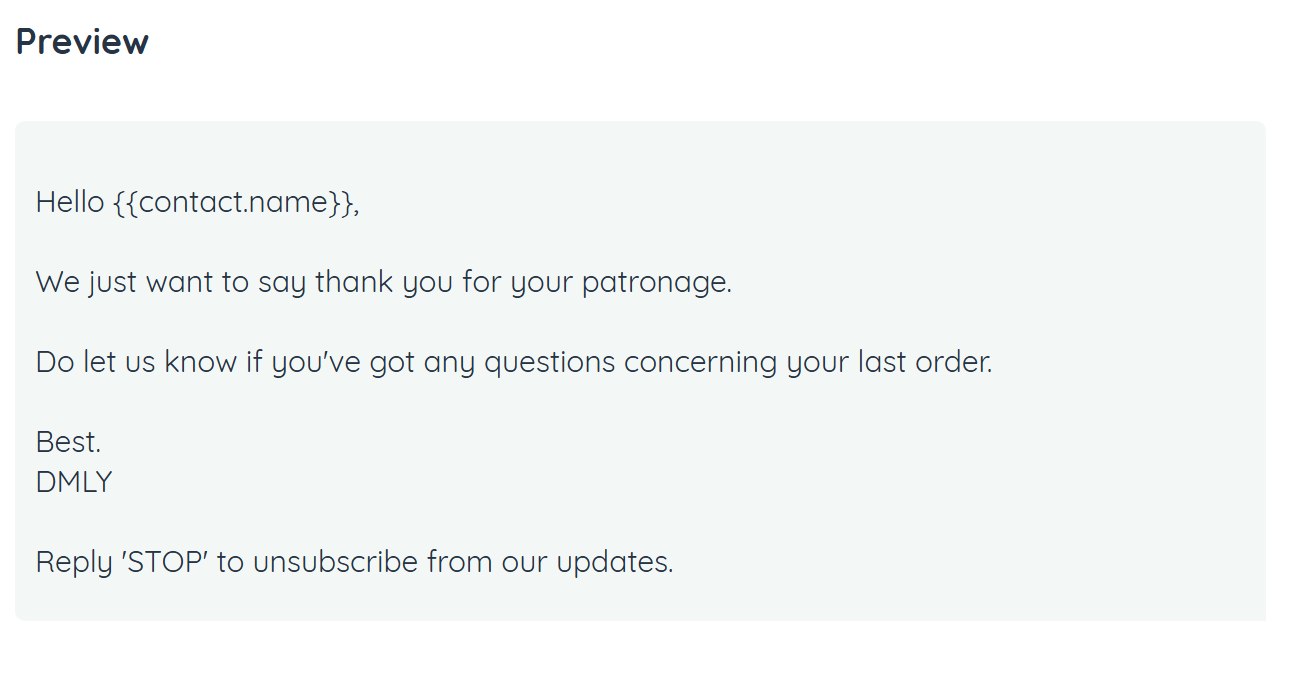
Click Send Test Message before launching your campaign.
This helps you:
Verify formatting
Confirm personalization works
Ensure template accuracy
Click:
Save – To schedule or queue the broadcast
Cancel – To discard changes
If scheduled, DMLY will automatically send at the selected time.
Once sent, you can monitor performance inside:
Broadcasts → Campaign List
Track:
Delivery status
Message failures
Engagement results
Template usage
Payment method must be active in Meta.
Template must be approved.
Stay within your messaging limits.
Maintain a high quality rating.
Keep messages clear and short.
Personalize with contact names.
Include a clear call-to-action.
Avoid sending too frequently.
Always test before launching.
Use segmentation for targeted messaging.
