DMLY allows you to invite team members, assign roles, control access, and manage workspace permissions from one place. This helps teams collaborate securely while maintaining proper access control.
To manage team members:
Log in to DMLY
Select the relevant workspace
Go to Settings → Team Members
You will see a list of all team members associated with the workspace.
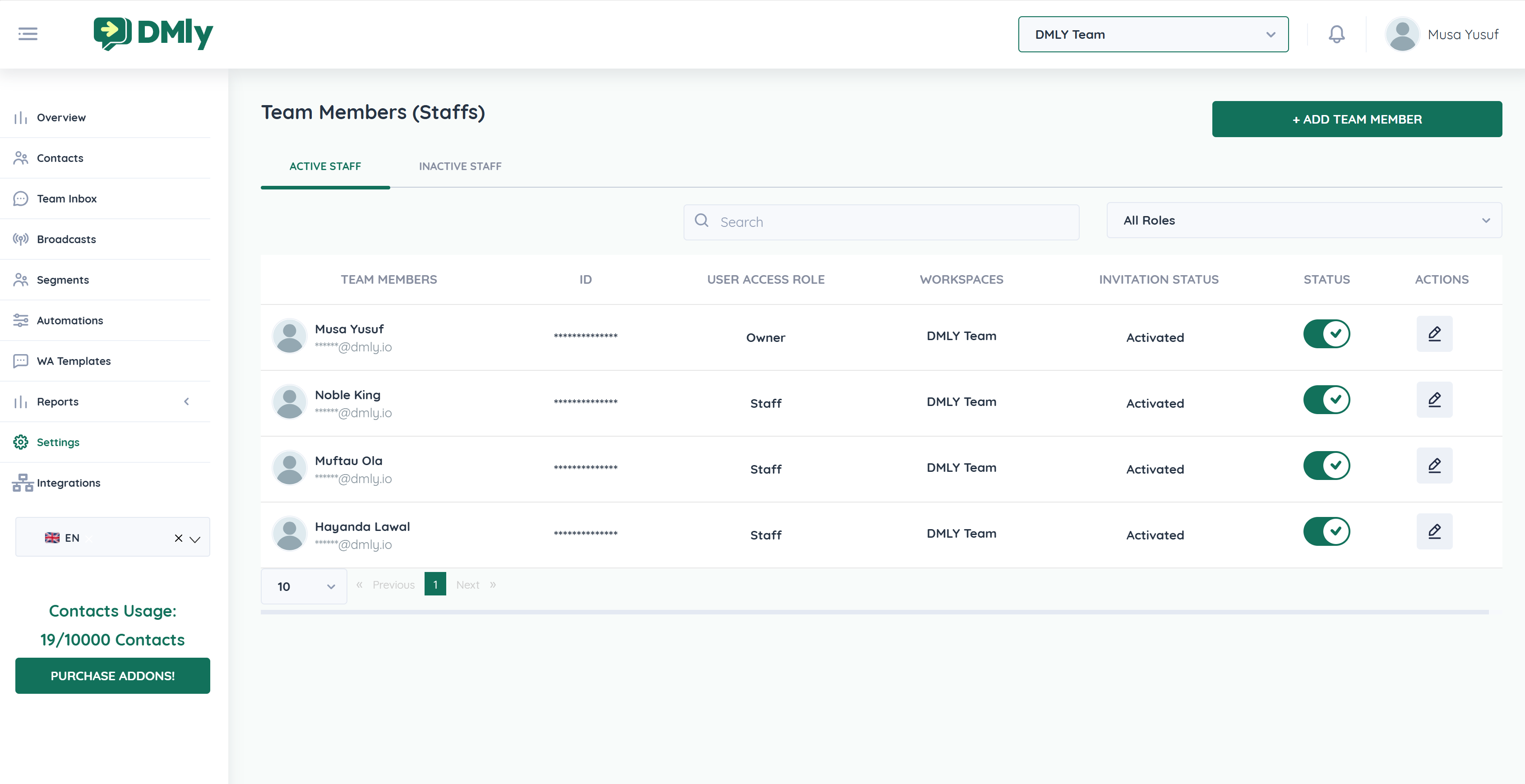
The Team Members page displays the following information:
Team Member – Name and email address
User Access Role – Owner, Administrator, or Staff
Workspaces – Assigned workspace(s)
Invitation Status – Activated or Pending
Status – Active or Inactive
Actions – Edit user details
You can switch between:
Active Staff
Inactive Staff
Use the Search bar or Role filter to quickly find users.
To invite a new team member:
Click + Add Team Member
The New Team Member form will open
First Name
Last Name
Email Address
Country Code
Mobile Number
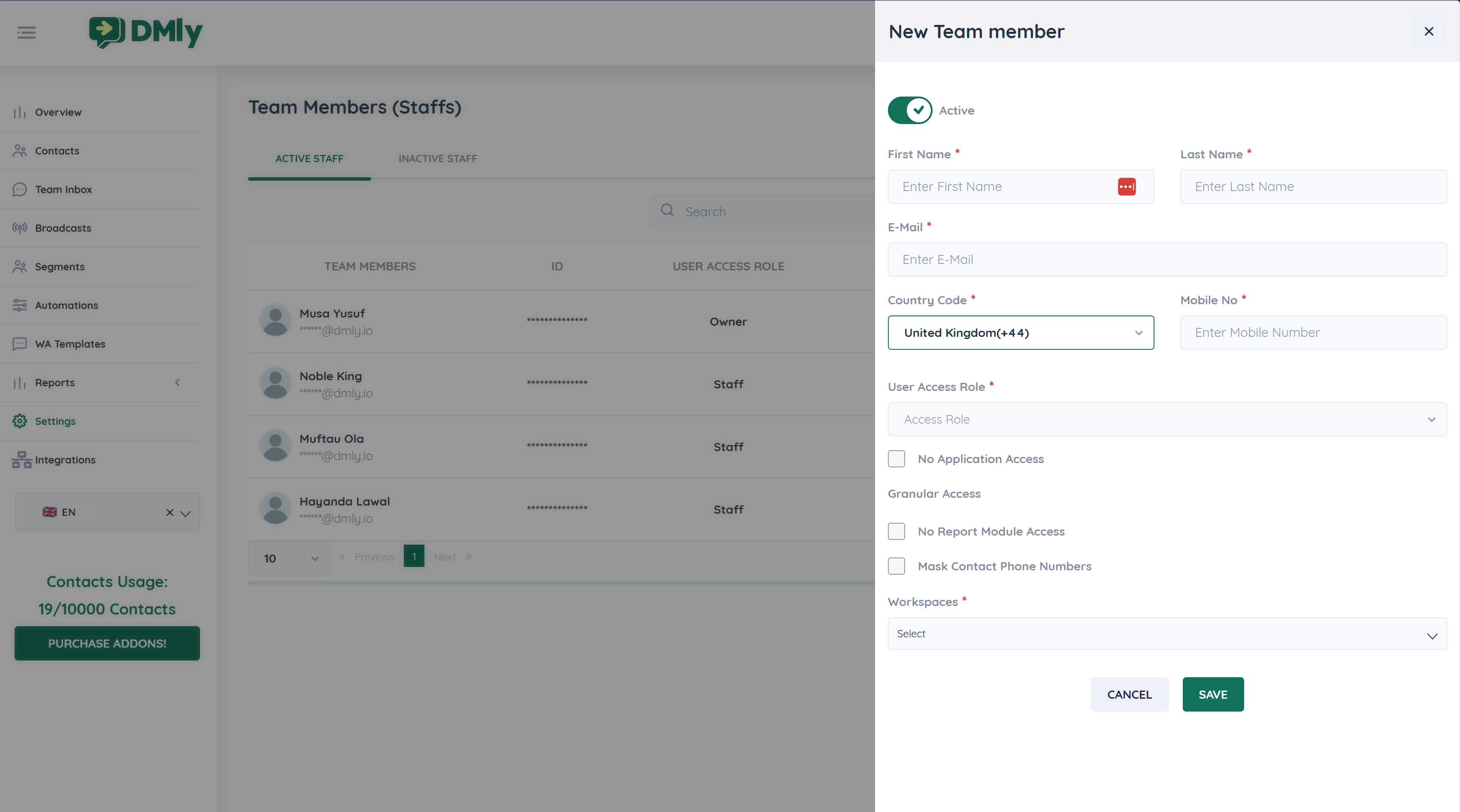
Select a role for the user:
Owner
Administrator
Staff
Roles determine what the user can access and manage within DMLY.
You can apply additional access controls:
No Application Access
Prevents login while keeping the account active
No Report Module Access
Hides analytics and reports
Mask Contact Phone Numbers
Masks phone numbers in conversations and contact lists
Select one or more Workspaces
A user must be assigned to at least one workspace to access the system
Workspace assignment ensures users only see data relevant to them.
Review the details
Click Save
The user will be added to the workspace and marked as Activated once access is confirmed.
Locate the user in the Team Members list
Click the Edit (✏) icon
Update:
Role
Workspace assignment
Access restrictions
Save changes
Updates take effect immediately.
Use the Status toggle to activate or deactivate a team member
Deactivated users lose access without being removed from the system
This is useful for temporary access control.
To fully restrict access:
Deactivate the user
Or remove workspace assignments
Only Owners or Administrators can manage team members.
Assign Owner access sparingly
Use Administrators for managers and leads
Apply Granular Access for support agents
Regularly review inactive users
Assign users only to necessary workspaces
