Role-Based Access Control (RBAC) in DMLY allows you to control what each team member can access and manage within the platform. By assigning roles, granular permissions, and workspace access, you can ensure secure collaboration without exposing unnecessary data or settings.
When adding or managing a team member in DMLY, access is controlled through three layers:
User Access Role
Granular Access Restrictions
Workspace Assignment
All three must be configured correctly for effective access control.
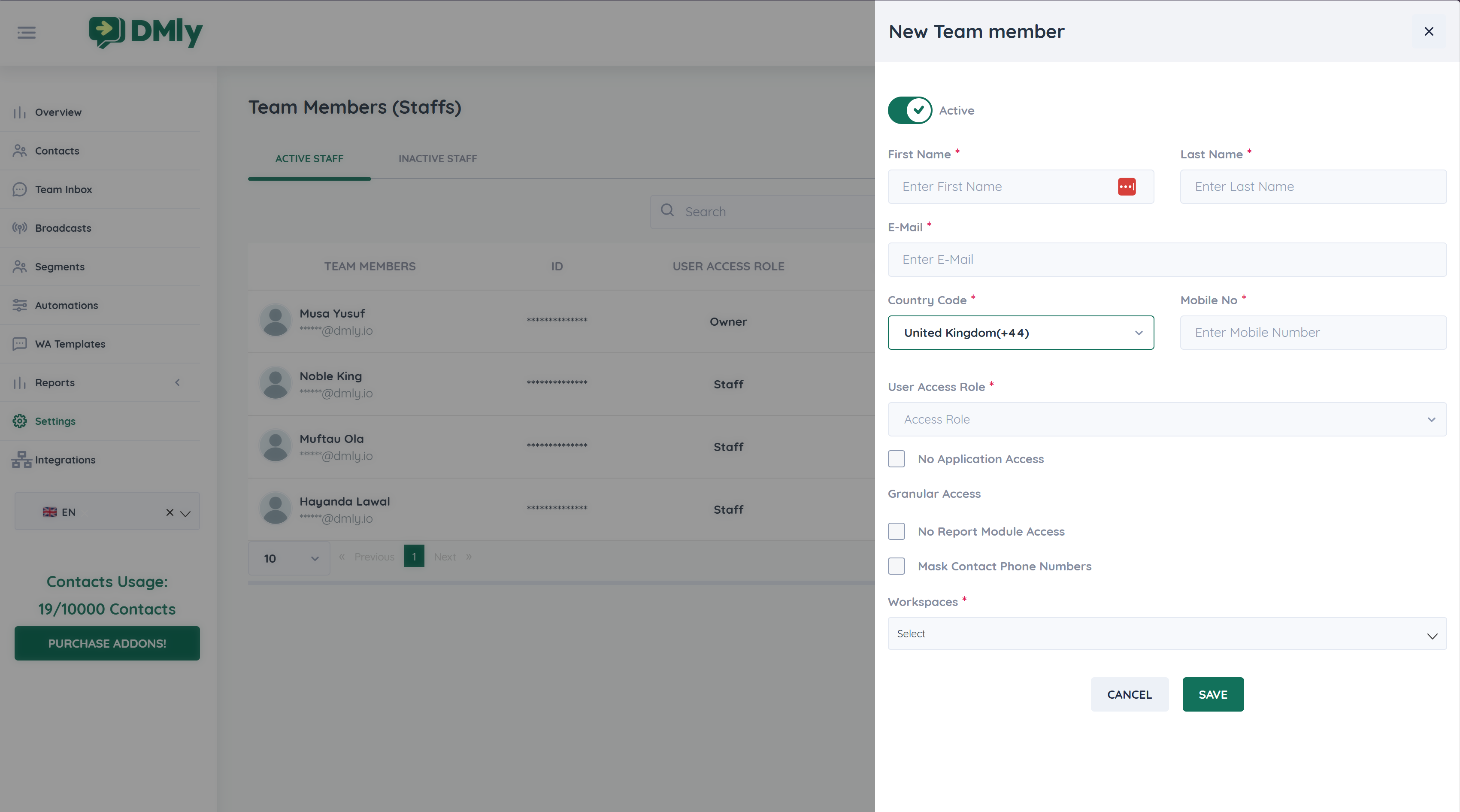
Each team member must be assigned a User Access Role. The role defines the user’s overall permission level.
Available roles include:
Owner – Full control over the account and all workspaces
Administrator – High-level access for managers and team leads
Staff – Limited access for support or operational users
The selected role determines what features the user can see and manage.
Granular Access allows you to further restrict what a user can access, even within their assigned role.
Available granular options include:
No Application Access
Prevents the user from logging into DMLY while keeping their account active.
No Report Module Access
Hides analytics and reporting modules from the user.
Mask Contact Phone Numbers
Displays masked phone numbers in conversations and contact lists to protect customer data.
These options are useful when onboarding support staff, external agents, or temporary users.
Each team member must be assigned to at least one Workspace.
Users can only view and interact with workspaces they are assigned to
Conversations, contacts, channels, and automations are isolated per workspace
Users assigned to multiple workspaces can switch between them
Without workspace assignment, a user cannot access the system.
When adding a new team member:
Enter the user’s basic details (name, email, phone)
Select a User Access Role
Apply Granular Access restrictions if needed
Assign one or more Workspaces
Save the user
Access becomes effective immediately after activation.
You can update role-based access at any time.
Change a user’s role
Enable or disable granular access options
Add or remove workspace assignments
Activate or deactivate a user
All changes take effect instantly.
Assign Owner access sparingly
Use Administrators for managers and supervisors
Use Staff roles with granular restrictions for support teams
Assign users only to the workspaces they need
Regularly review user access to maintain security
