Account Security settings in DMLY help protect your account from unauthorized access. You can enable Two-Factor Authentication (2FA) and manage your login password from this section.
To access Account Security:
Log in to DMLY
Select your workspace
Go to Settings → Account Security
Two-Factor Authentication adds an extra layer of protection to your account by requiring a one-time code during login.
After entering your password, you must provide a 6-digit code from an authenticator app
This prevents unauthorized access even if your password is compromised
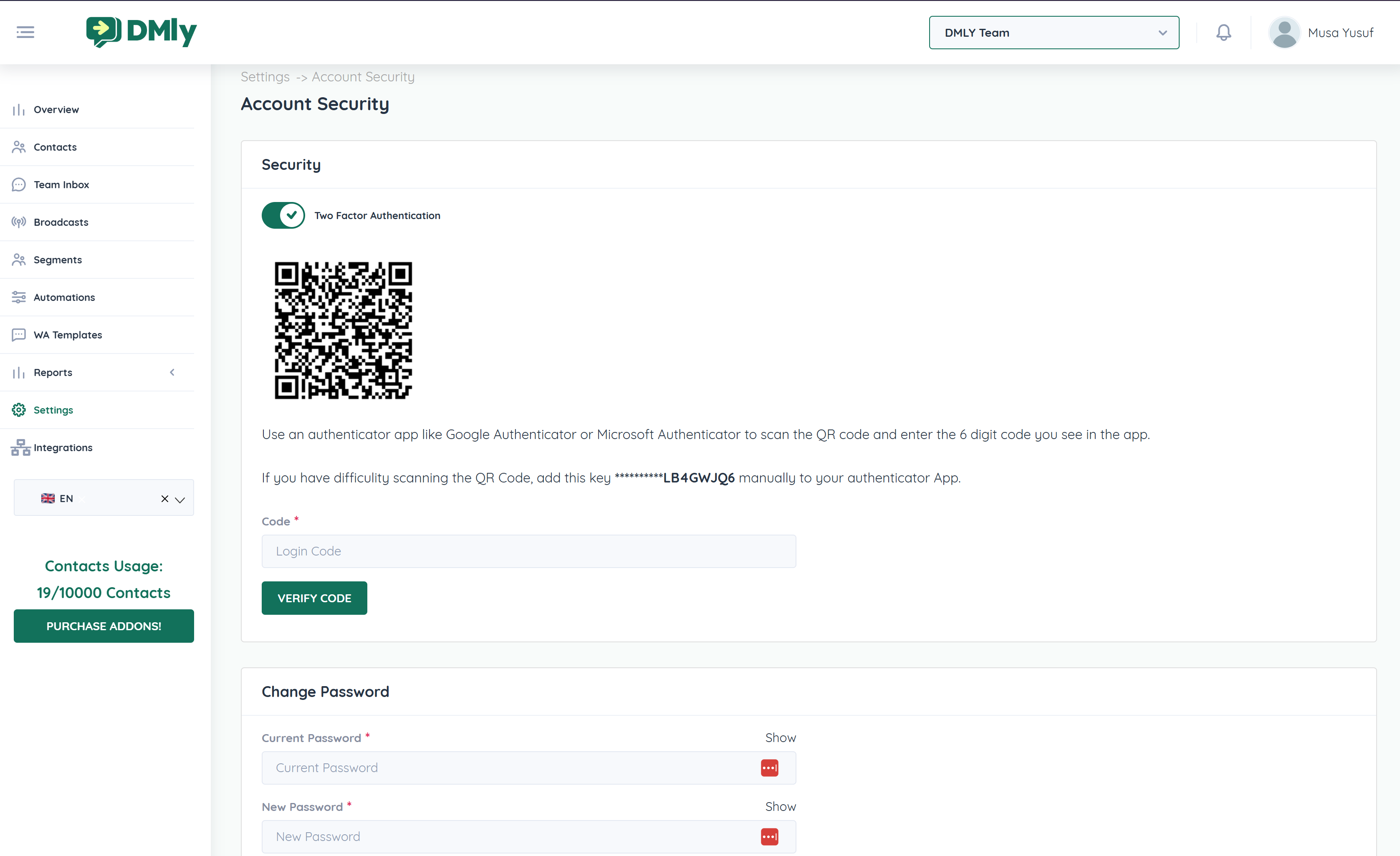
Open Account Security
Toggle Two Factor Authentication to enable it
Scan the displayed QR Code using an authenticator app such as:
Google Authenticator
Microsoft Authenticator
If you cannot scan the QR code, manually enter the provided secret key into your authenticator app
Enter the 6-digit login code generated by the app
Click Verify Code
Once verified, 2FA is successfully enabled.
Enable 2FA for all Owners and Administrators
Strongly recommended for accounts with sensitive customer data
Helps protect against phishing and password leaks
You can update your account password at any time.
Scroll to the Change Password section
Enter your Current Password
Enter your New Password
Confirm the new password if required
Save the changes
Your new password takes effect immediately.
Use a strong, unique password
Avoid reusing passwords from other platforms
Change your password regularly
Do not share login credentials with others
Always enable Two-Factor Authentication
Log out from shared or public devices
Review team access regularly
Remove inactive users promptly
Keep your email address secure
