Connect your Facebook Page Messenger to DMLY to send and receive messages directly from your unified Team Inbox, alongside WhatsApp, Instagram, Telegram, and Live Chat.
Make sure:
You have Admin access to the Facebook Page
The page is linked to a Meta Business Account
You know your Facebook login credentials
Open the DMLY dashboard.
Log in using your credentials.
Select the appropriate workspace.
From the left sidebar, click Integrations.
Under Messenger, click the Connect button
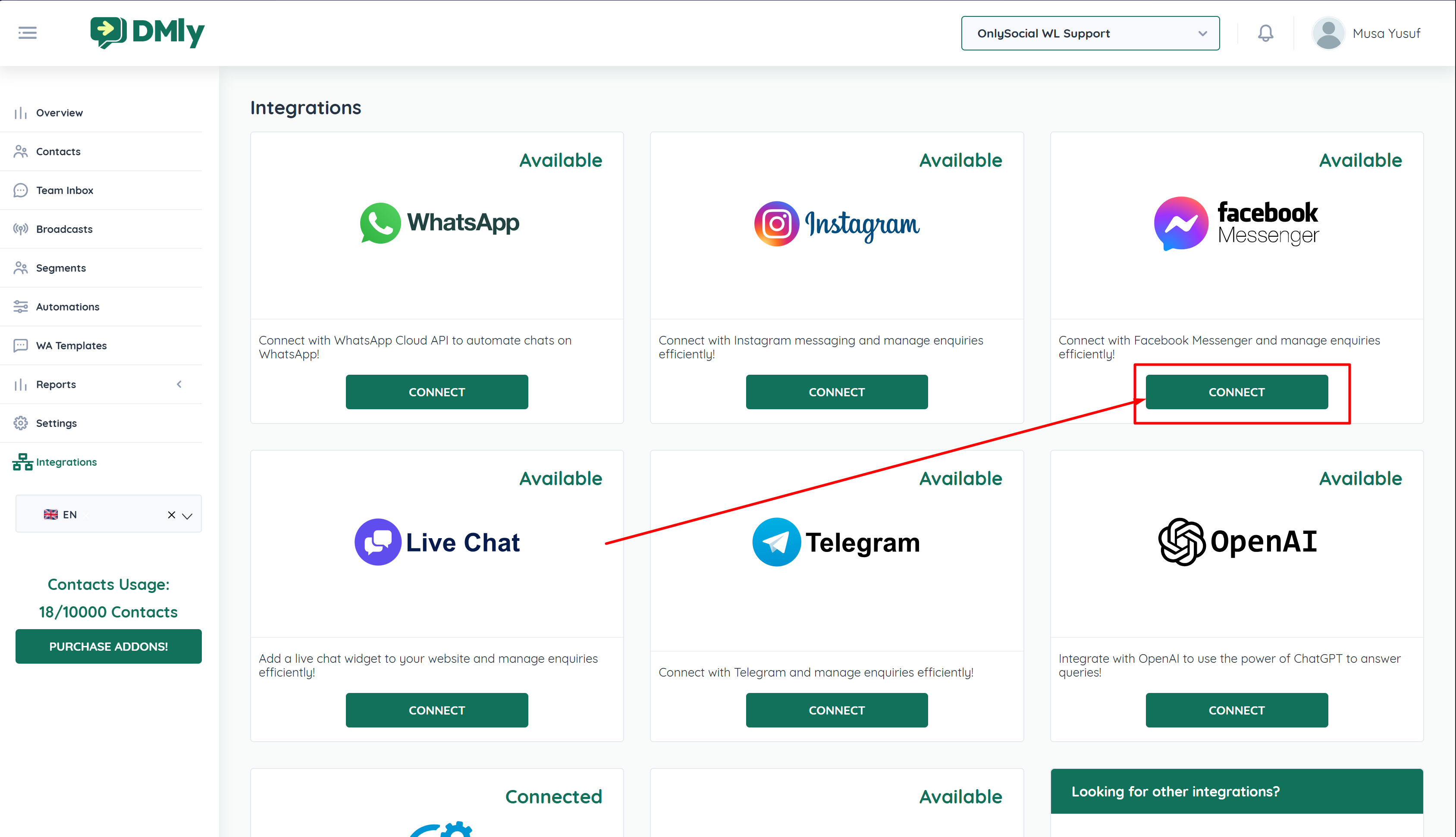
Click Connect with Messenger.
A new Facebook login window will open.
Sign in using the Facebook account linked to your Meta Business Account.
Grant all requested permissions.
⚠ Ensure you log in with an account that has Admin access to the Facebook Page.
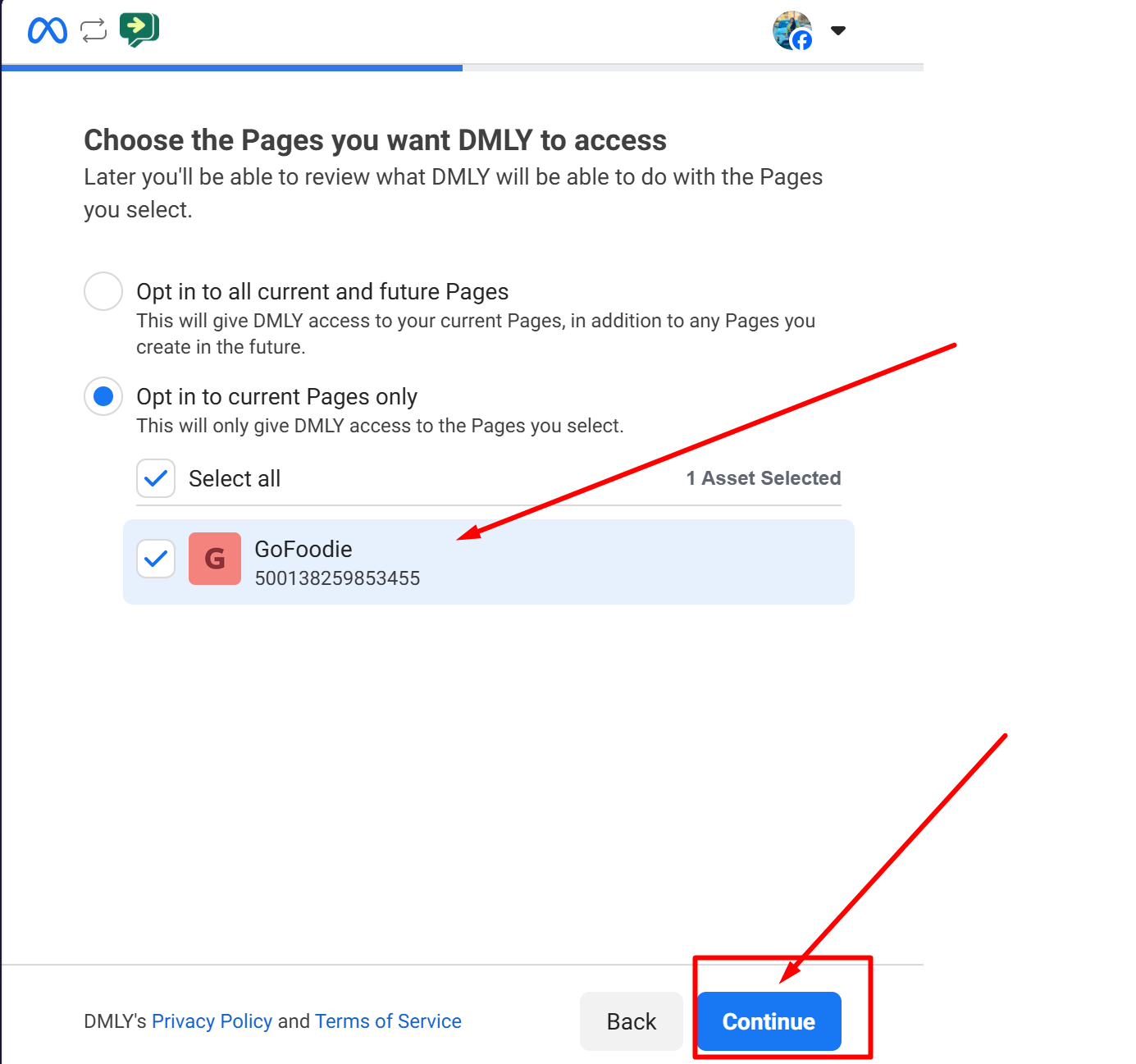
Choose the Facebook Page you want to connect.
Example: ABC Business
Click Next to continue.
Select the Meta Business Account associated with the selected page.
Example: ABC Business
Click Continue.
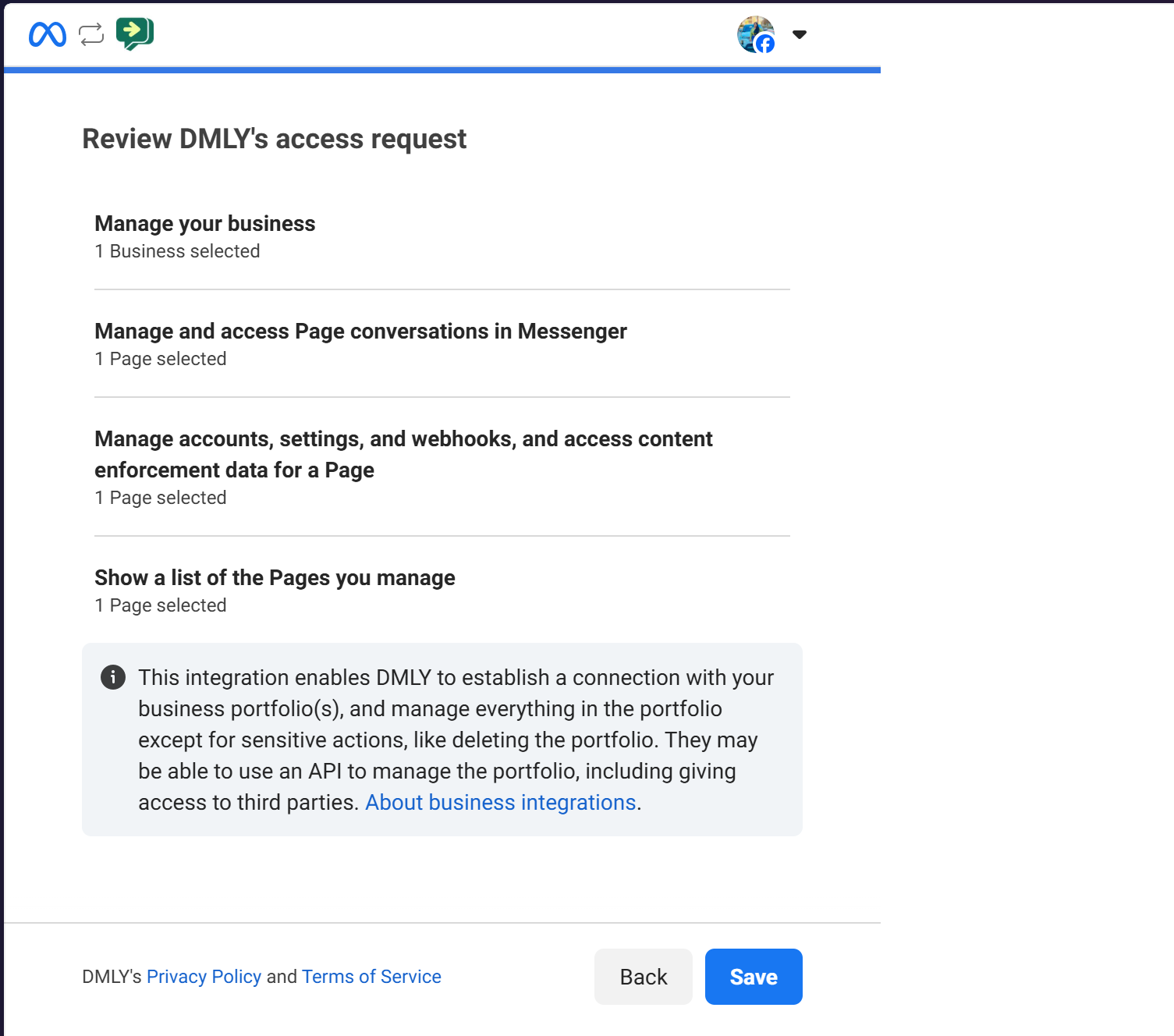
Click Save to finalize the connection.
Within a few seconds, the status will update to Connected.
Click Got It to proceed.
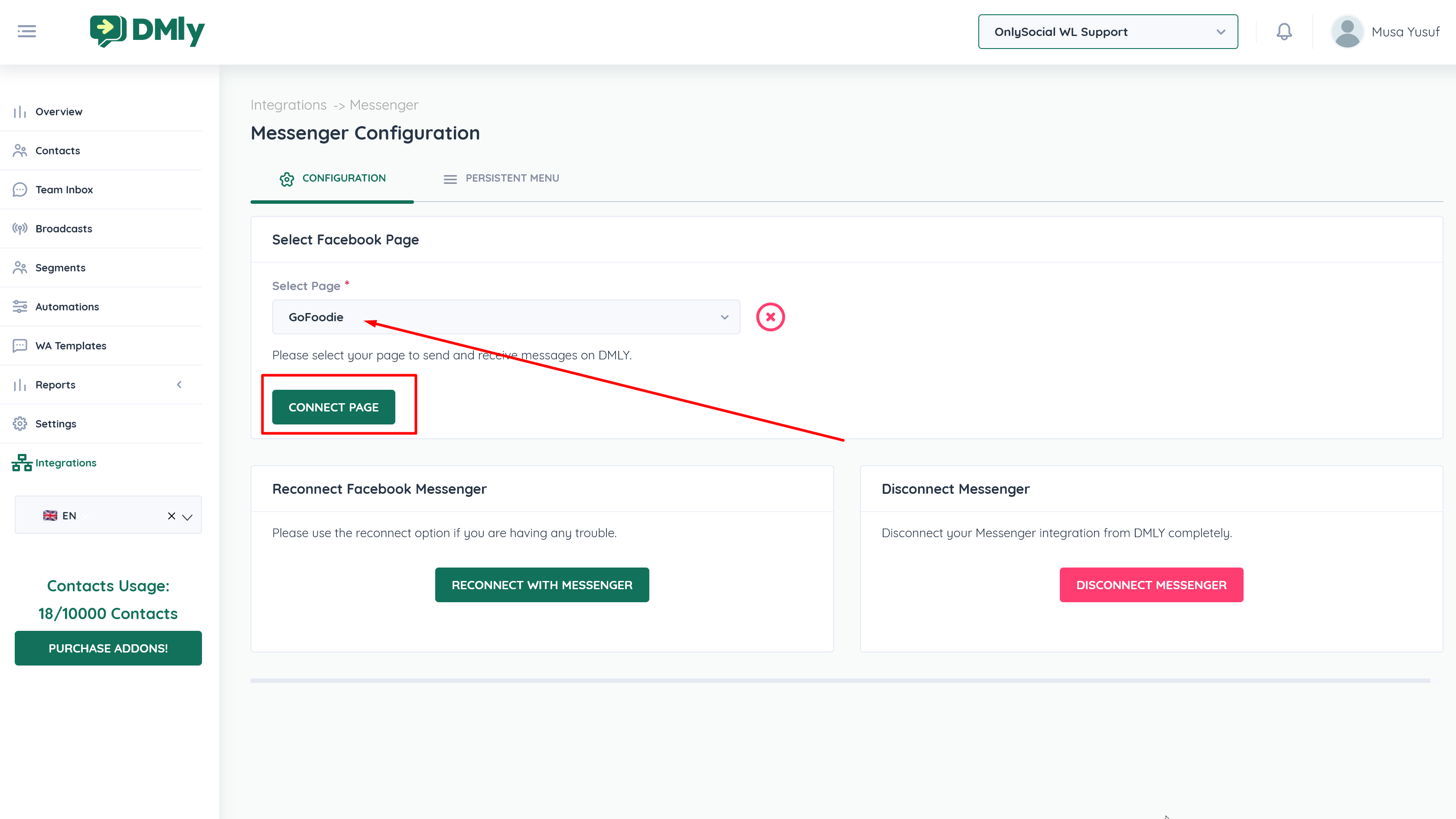
Click the Go To Messenger Settings button.
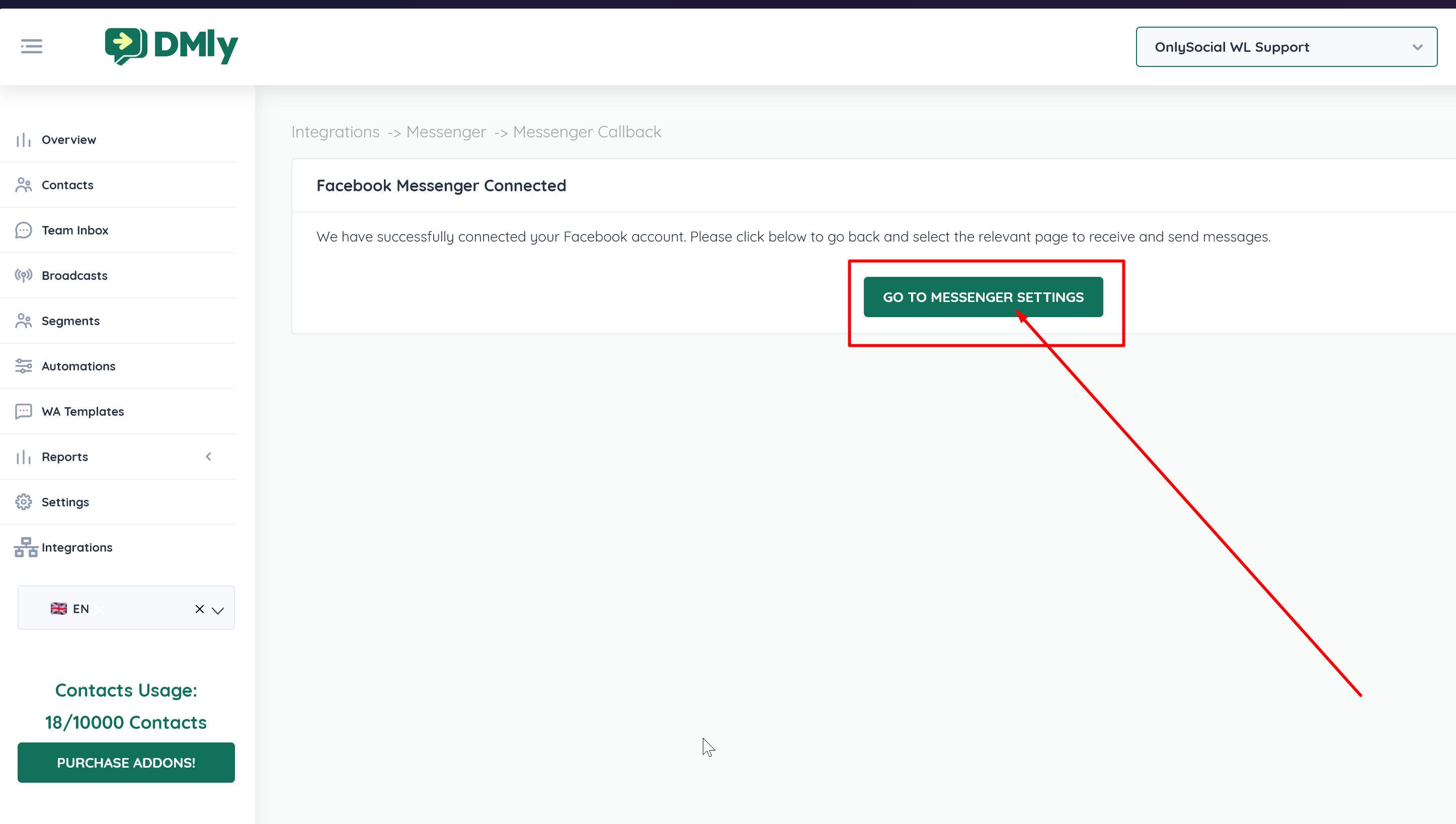
Select your Facebook Page again.
Click Connect Page to complete the Messenger integration.
Once connected:
Incoming Messenger messages will appear in the Team Inbox
Agents can reply directly from DMLY
Conversations can be assigned to team members
Automations can be configured for Messenger
To confirm setup:
Send a message to your Facebook Page from a personal account.
Check the Team Inbox in DMLY.
Confirm the message appears and can be replied to.
If the connection fails:
Confirm you are an Admin of the Facebook Page
Ensure the page is linked to a Meta Business Account
Log out of Facebook and reconnect
Remove the integration and reconnect if needed
