Connect your Telegram bot to DMLY to send and receive messages directly inside your unified Team Inbox, alongside WhatsApp, Instagram, Messenger, and Live Chat.
To connect Telegram, you need:
A Telegram account
A Telegram bot created via @BotFather
The Bot API Token generated during setup
Open the DMLY app.
Log in to your account.
Select the appropriate workspace.
Navigate to Integrations from the left sidebar.
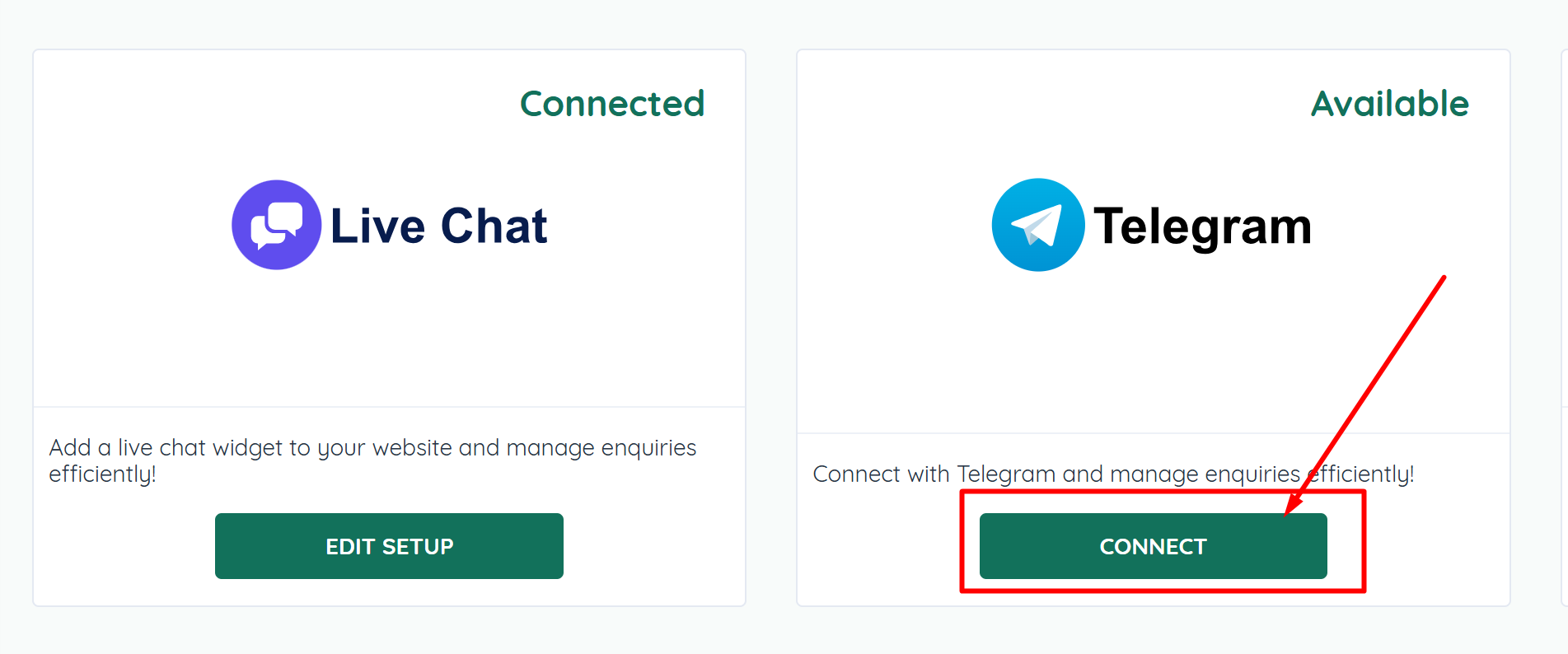
Click Telegram Connect.
If you do not already have a Telegram bot:
Open the Telegram app.
Search for @BotFather.
Start a chat with BotFather.
Send the command:
/newbotBotFather will guide you through the setup process.
During bot creation:
Choose a Bot Name
Example: MyBusiness Bot
Choose a Username
The username must:
Be unique
End with bot
Example: mybusiness_support_bot
Once completed, BotFather will confirm your bot has been created.
After setup, BotFather will provide a Bot API Token.
It will look similar to:
123456789:ABCdefGhIjKlmNoPQRstuVwXyZ⚠ Keep this token secure. Anyone with access to it can control your bot.
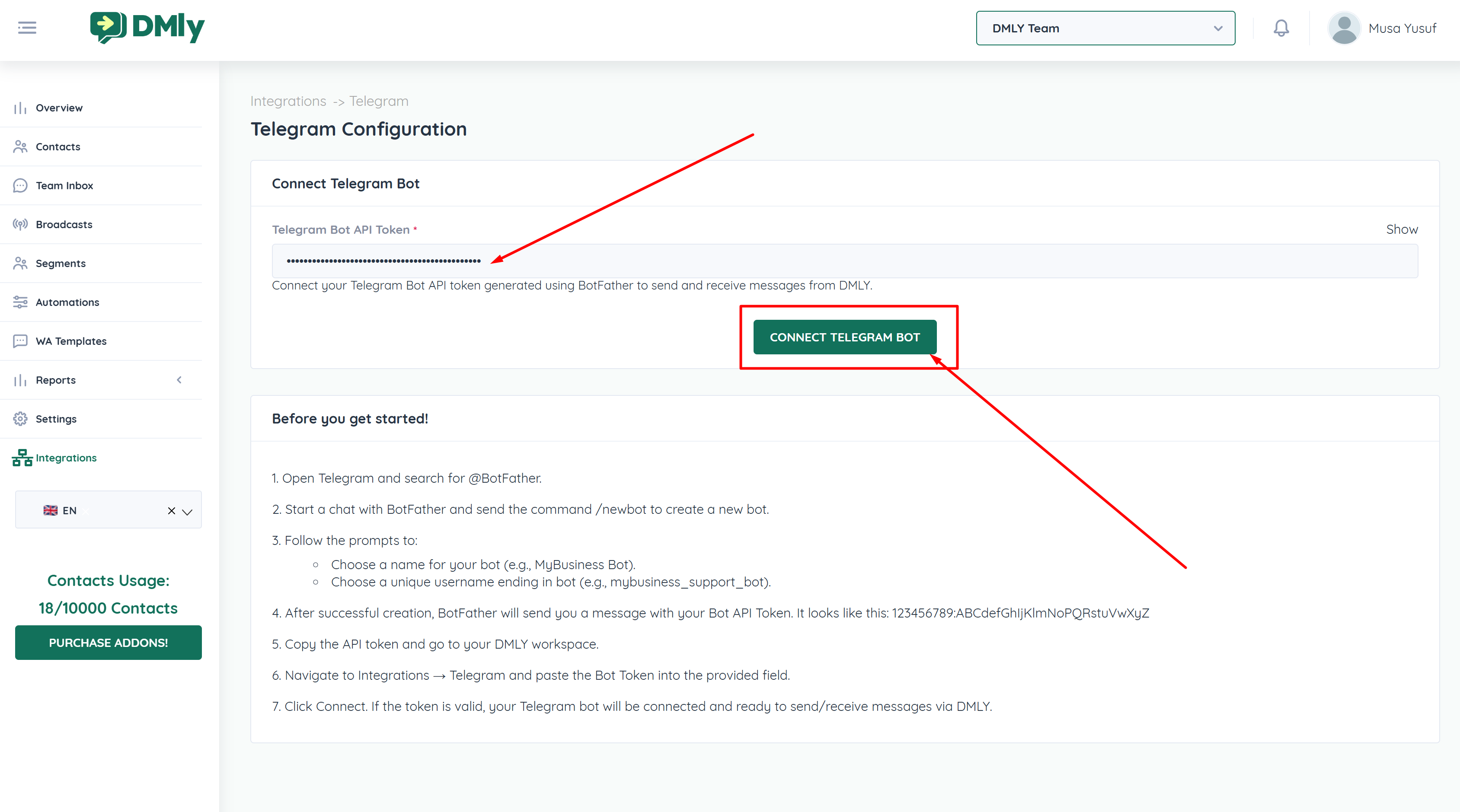
Return to DMLY → Integrations → Telegram
Paste your Bot Token into the provided field.
Click Connect
If the token is valid, your Telegram bot will connect instantly.
Once connected:
Messages sent to your Telegram bot will appear in the Team Inbox
Agents can reply directly from DMLY
Automations can be configured for Telegram
Conversations are stored within the assigned workspace
To confirm everything is working:
Open Telegram.
Search for your bot username.
Send a message.
Check the Team Inbox in DMLY to confirm it appears.
If connection fails:
Ensure the Bot Token is copied correctly
Confirm the token has not been regenerated
Verify the bot was created successfully via @BotFather
If needed, regenerate the token using:
/tokenin BotFather and reconnect in DMLY.
Your Telegram bot is now connected to DMLY.
