The Unified Inbox in DMLY centralizes all customer conversations from WhatsApp, Instagram, Messenger, Telegram, Live Chat, and other connected channels into one powerful interface.
This guide explains how the Inbox is structured and how to manage conversations efficiently.
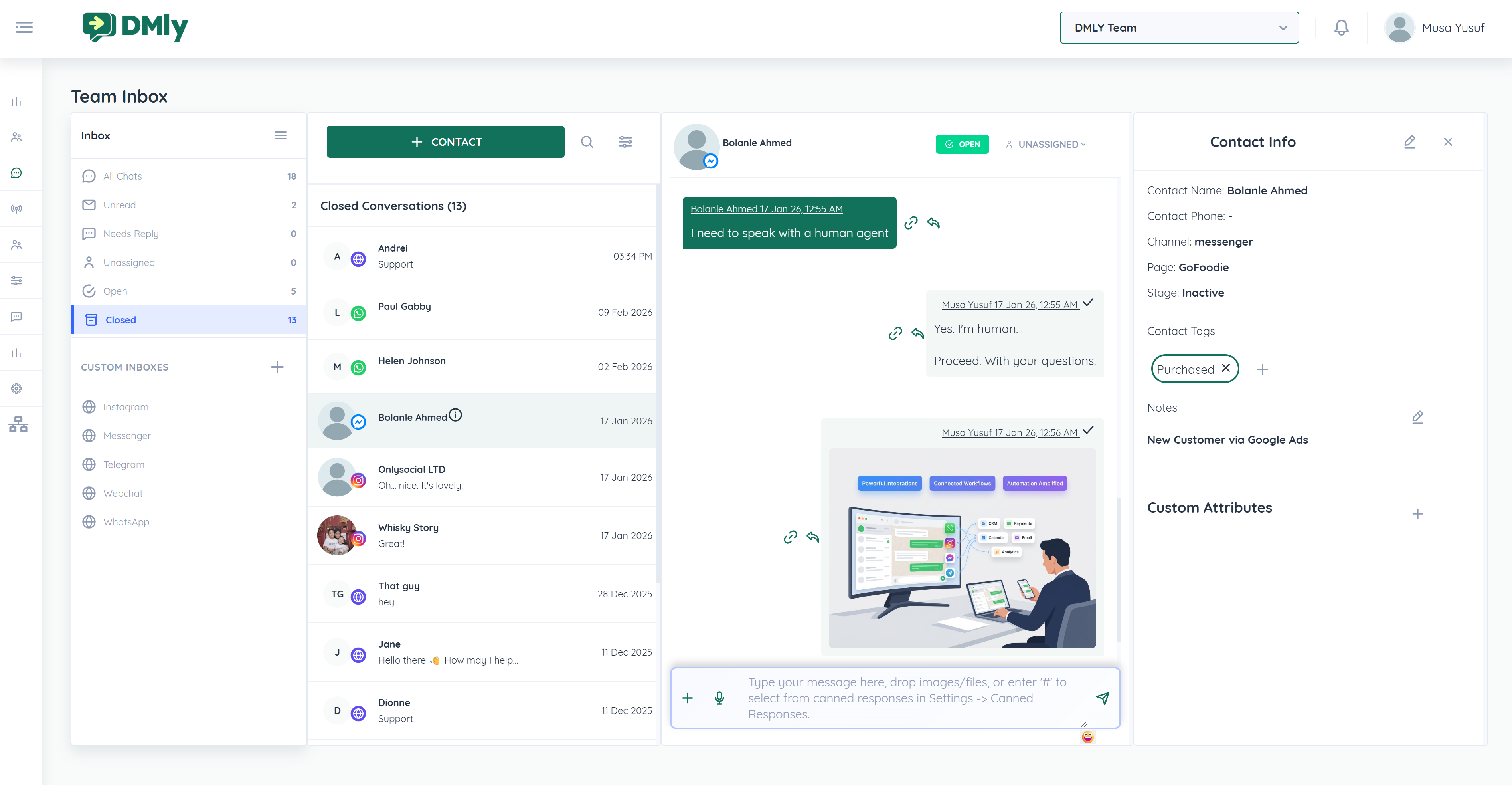
On the left side of the Unified Inbox, you’ll find conversation folders that help you organize and manage chats.
Displays all conversations across all connected channels.
Shows conversations that have not yet been opened by any team member.
Displays conversations that require a response from your team.
Shows conversations currently being handled by a team member.
Displays completed conversations.
⚠ Important:
Closed conversations are also where AI bot automation is active (unless disabled in bot settings).
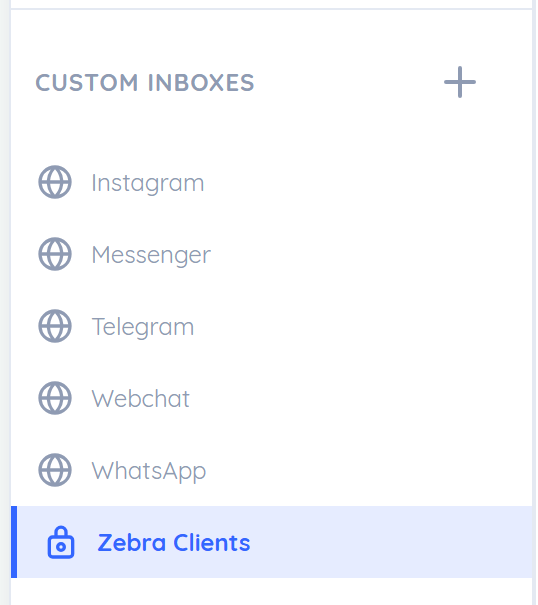
You can create custom inboxes filtered by:
Channel (WhatsApp, Instagram, Messenger, etc.)
Tags
Pipeline Stage
Message Status
Assigned Teammate
Custom inboxes help teams focus on specific segments or workflows.
DMLY provides powerful filtering tools to manage large volumes of conversations.
You can filter conversations by:
Assigned team member
Tags
This helps teams quickly locate relevant chats.
Use the search bar to find conversations using:
Contact name
Message keywords
Conversation content
Search scans the entire inbox for matching results.
On the right side of the Inbox, you’ll find the Contact Info Panel.
This section allows you to manage and view detailed customer information.
Includes:
Contact Name
Phone Number
Pipeline Stage
Channel Source
Add custom tags manually
Tags can also be added automatically via automations
Useful for segmentation and reporting
Add internal notes visible only to your team.
Use notes for:
Follow-up reminders
Context
Internal collaboration
You can add custom attributes to conversations.
These can be used:
In API integrations
In automation workflows
For advanced segmentation
When a conversation is new, it may appear as Unassigned.
To assign:
Click the Unassigned button at the top of the chat
Select a team member
By default:
The first team member who responds to a conversation gets automatically assigned
This simplifies ownership and follow-up
If a conversation is Open, you will see a Close button at the top of the chat.
Click Close to mark the conversation as resolved.
If the conversation is already closed, the button will display Open, allowing you to reopen it.
The AI bot only responds to conversations when they are in the Closed state.
If you want the bot to behave differently, you can modify this setting when building your automation.
You can attach files directly within a conversation.
To attach media:
Click the + icon in the chat input field
Select the file type
Supported formats include:
Images
Videos
Documents
Voice Notes
For WhatsApp conversations:
Use the same attachment button
Select and send an approved WhatsApp Template
Templates are required for initiating conversations or messaging outside the 24-hour window.
Canned Responses allow you to save pre-defined replies for faster communication.
Go to:
Settings → Canned Responses
In the chat input field, type:
#A list of saved responses will appear
Select the desired reply
This helps teams respond quickly and consistently.
The DMLY Unified Inbox allows you to:
Manage all conversations in one place
Assign and track team ownership
Attach media files
Use WhatsApp templates
Add tags, notes, and custom attributes
Filter and search efficiently
Enable AI automation for closed conversations
The Unified Inbox ensures organized, scalable, and efficient customer communication across all channels.
