Assigning conversations ensures accountability, faster responses, and organized follow-ups inside the DMLY Unified Inbox.
Assigning a conversation helps:
Clarify ownership
Prevent duplicate replies
Track performance per team member
Improve follow-up efficiency
Go to Team Inbox
Select the conversation you want to assign
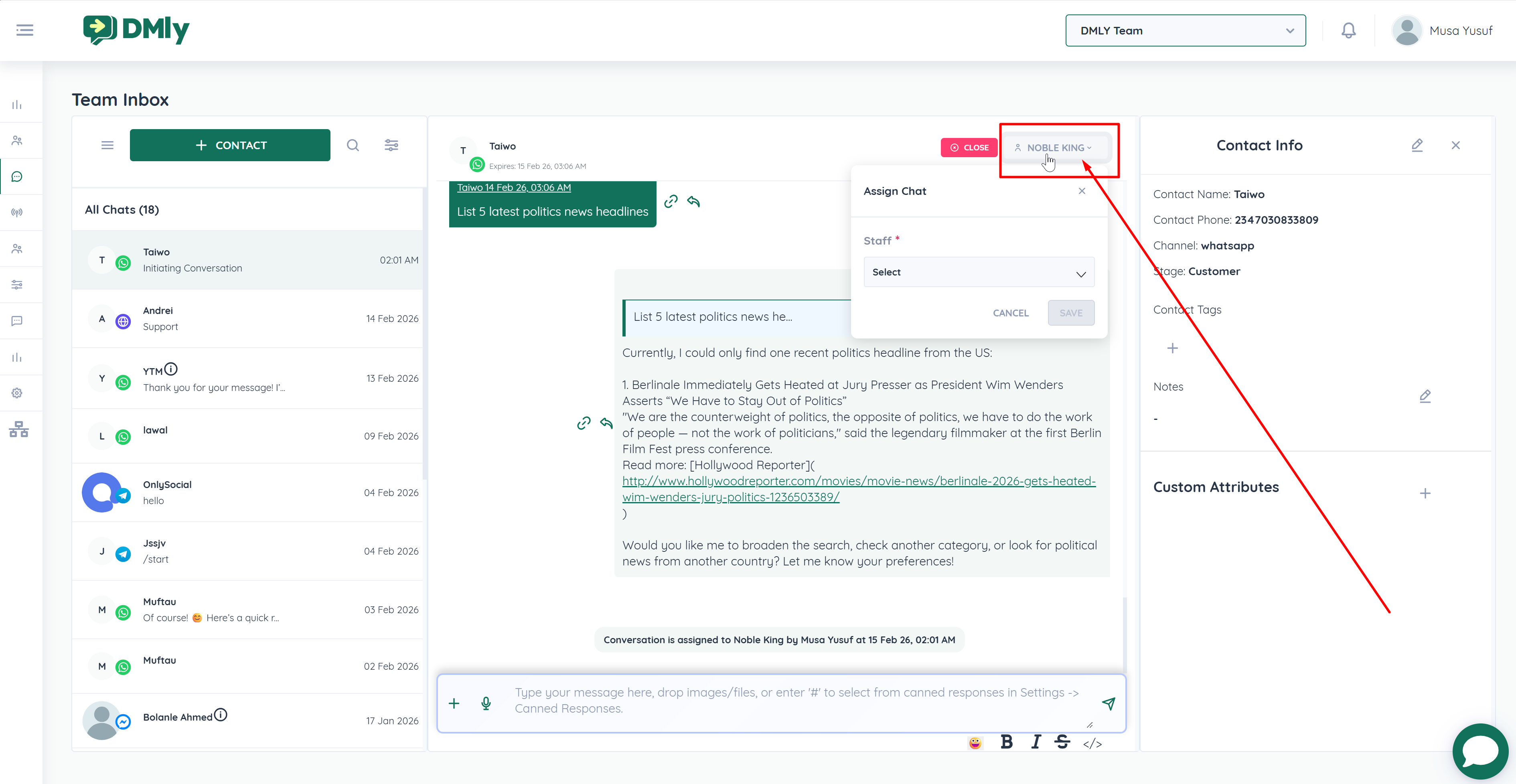
At the top of the chat window, you will see an Unassigned button (if the conversation has not yet been assigned).
Click Unassigned
Select the team member from the dropdown list
The conversation will now be assigned
The assigned team member’s name will appear at the top of the conversation.
By default:
The first team member who replies to a conversation is automatically assigned to it.
This ensures smooth ownership without manual steps.
You can still manually reassign the chat if needed.
DMLY allows you to automatically assign incoming conversations to team members using Round Robin distribution inside the Automation Builder.
This ensures fair and balanced chat distribution among your team.
Round Robin automatically distributes chats to available staff members one after another in sequence.
Example:
Chat 1 → Agent A
Chat 2 → Agent B
Chat 3 → Agent C
Chat 4 → Agent A (cycle repeats)
This prevents overloading a single agent and ensures equal workload distribution.
Go to Automations
Create a new automation or edit an existing one
Define your trigger conditions
(Example: Message Type = Bot to Human Transfer)
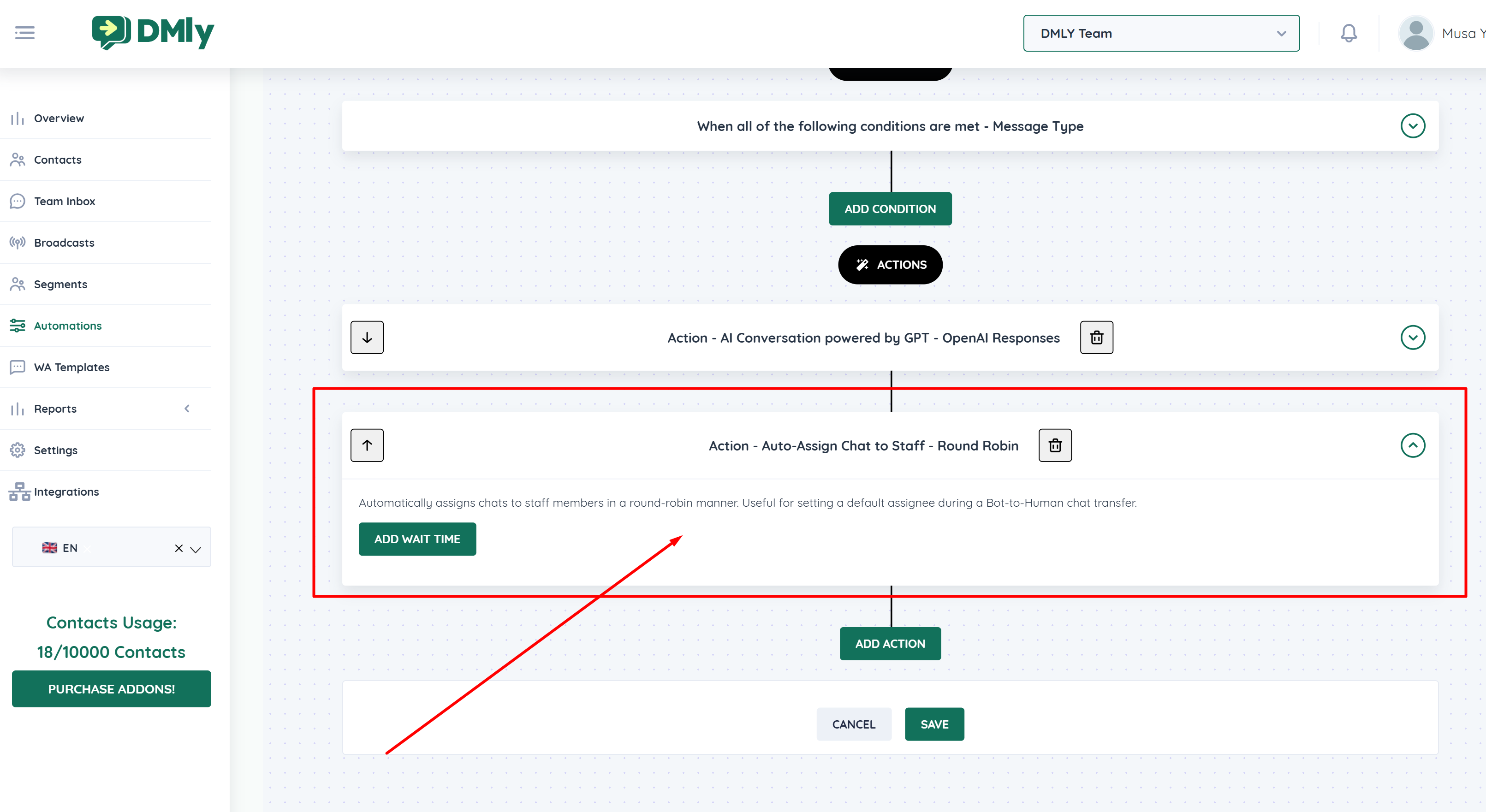
Click Add Action
Select Auto-Assign Chat to Staff
Choose Round Robin as the assignment method
You will see:
Action – Auto-Assign Chat to Staff – Round Robin
To transfer ownership:
Click the assigned teammate’s name at the top of the chat
Select a different team member
The conversation is instantly reassigned
This is useful for:
Escalations
Shift changes
Specialized support handling
The AI bot only responds when conversations are in the Closed state (unless this behavior is disabled in your bot settings).
Make sure chats are properly assigned and closed after resolution to maintain smooth automation flow.
