The Unified Inbox in DMLY allows you to organize and enrich customer conversations using Tags, Notes, and Custom Attributes. These tools help your team track context, segment customers, and power automations.
All three options are located in the Contact Info panel on the right side of the conversation screen.
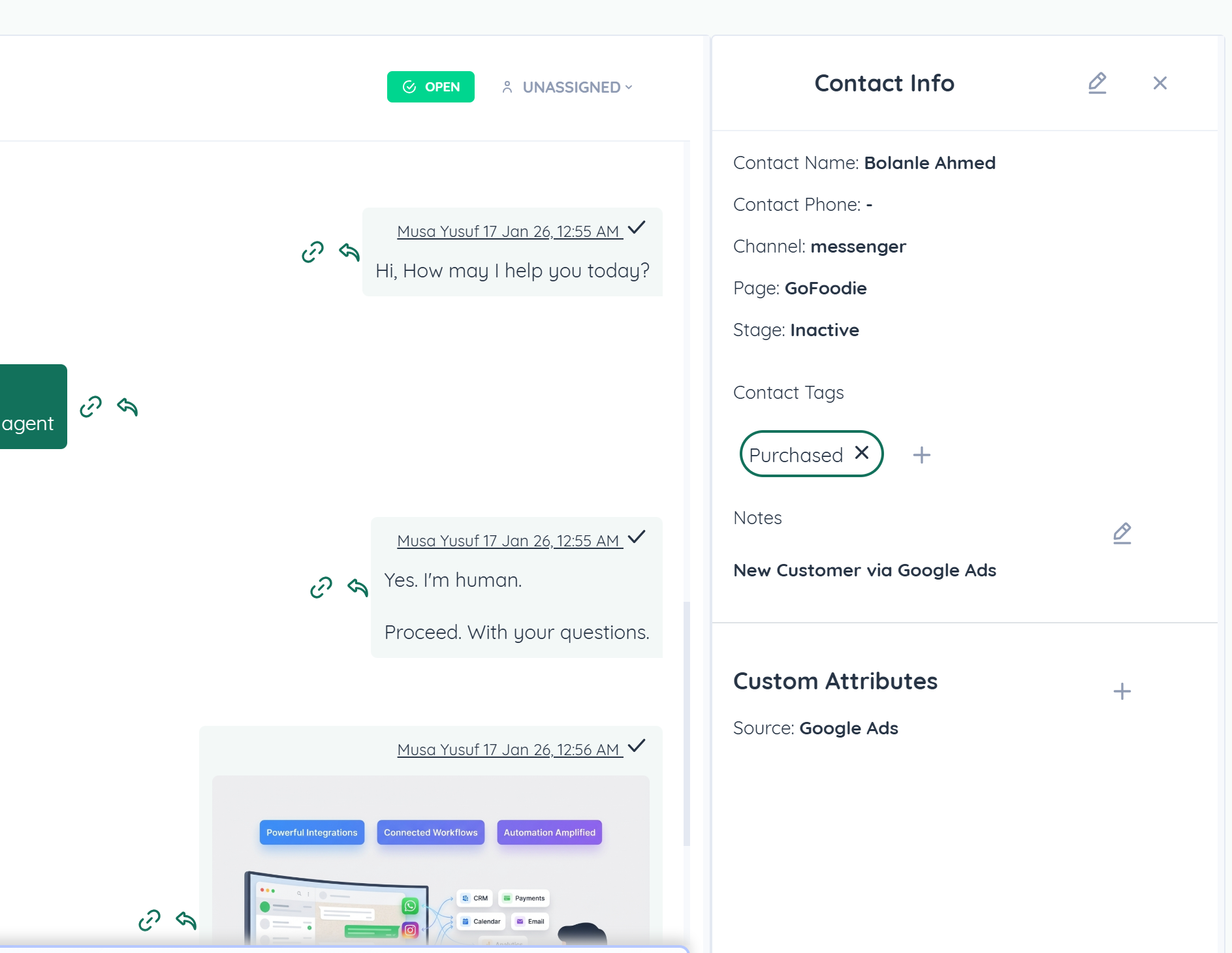
Tags help you categorize conversations for filtering, segmentation, and automation.
Tags can be used to:
Segment customers (e.g., Lead, VIP, Purchased)
Trigger automations
Filter conversations
Track campaign performance
Identify source or customer type
Open a conversation in the Unified Inbox
Locate the Contact Info panel on the right
Scroll to Contact Tags
Click the + (Plus) icon
Enter a new tag name or select an existing one
Press Enter or confirm selection
The tag will instantly appear under the contact.
Click the X icon on the tag to remove it.
Tags can be added manually or via automation.
Tags can be used inside workflows for conditions.
You can filter conversations by tags in the Inbox.
Notes allow your team to add private internal comments that are not visible to customers.
Use Notes to:
Record important context
Add follow-up reminders
Share internal information
Track special requests
Log external communications
Open the conversation
Go to the Contact Info panel
Locate the Notes section
Click the Edit (Pencil) icon
Enter your internal note
Save your changes
Notes are visible only to team members.
Custom Attributes allow you to store structured data about a contact.
Example attributes:
Source (Google Ads)
Order ID
Plan Type
Customer Tier
Campaign Name
Custom Attributes can be used in:
API integrations
Automation conditions
Advanced segmentation
Reporting
CRM workflows
Open the conversation
Scroll to the Custom Attributes section
Click the + (Plus) icon
Select an existing attribute or create a new one
Enter the value
Save
The attribute will now be linked to the contact.
Click the attribute field
Update the value
Save changes
Changes apply immediately.
Use standardized tag naming (e.g., Lead, Hot Lead, Purchased)
Keep notes concise and actionable
Use Custom Attributes for structured data
Combine Tags + Attributes for powerful automation
Regularly review and clean unused tags
