Quick Replies (also called Canned Responses) allow you to save frequently used messages and insert them instantly inside conversations.
This helps your team respond faster, maintain consistency, and improve productivity in the Unified Inbox.
Quick Replies are pre-written messages that you can reuse anytime during a chat.
Examples:
Greeting messages
Pricing details
Refund policies
Support instructions
Appointment confirmations
Instead of typing the same message repeatedly, you can load it instantly.
To create or edit Quick Replies:
Go to Settings
Click Canned Responses
Create, edit, or delete saved replies
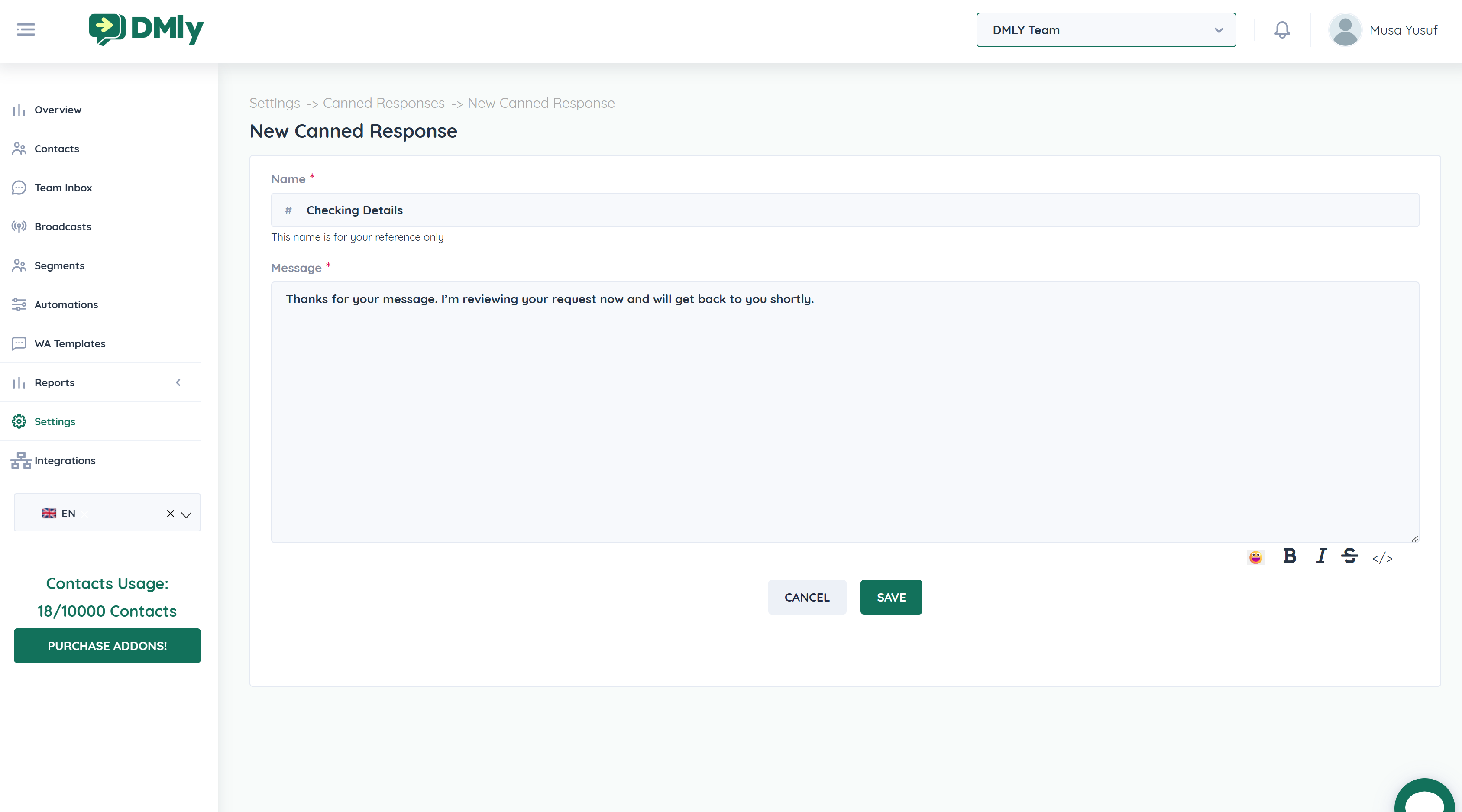
Navigate to Settings → Canned Responses
Click Add New Response
Enter:
A Title/Name (internal reference)
The Message Content
Save the response
Your canned reply is now available in the Inbox.
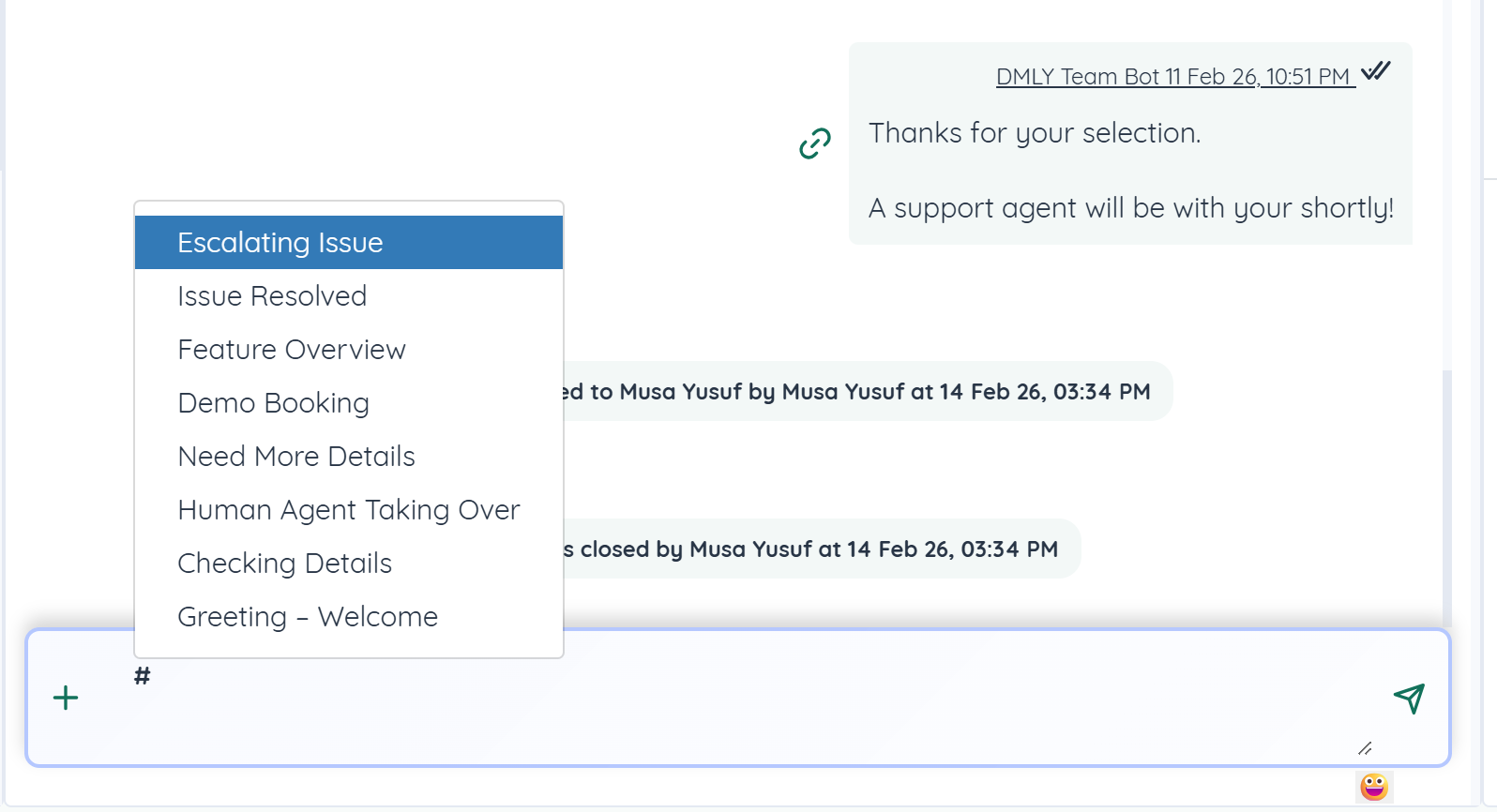
Open a conversation in the Unified Inbox
In the message input field, type:
#A list of saved responses will appear
Select the response you want
Edit if needed
Click Send
The message will be inserted instantly into the chat.
After inserting a canned response:
You can modify the text before sending
Add personalization
Attach files if needed
This ensures flexibility while maintaining speed.
Faster response times
Consistent messaging
Reduced typing effort
Improved customer experience
Standardized support communication
After inserting a canned response, you can still:
Attach Images
Attach Videos
Send Documents
Send Voice Notes
For WhatsApp:
If outside the 24-hour window, use an approved Template instead.
Keep responses short and clear
Use standardized titles (e.g., Greeting, Refund Policy, Demo Link)
Update outdated responses regularly
Train your team to use consistent naming conventions
Create category-based replies (Sales, Support, Billing)
Quick Replies can be used for:
Support macros
FAQ responses
Multi-language support replies
Follow-up sequences
Onboarding instructions
