If your automation is not triggering as expected, don’t worry — in most cases, the issue is caused by a simple configuration error or missing condition. This guide walks you through the most common reasons and how to fix them quickly.
Automations only run when the exact trigger condition is satisfied.
Check:
Is the correct trigger selected? (e.g., new message, tag added, status changed)
Does the contact meet the defined condition?
Is the trigger set to a specific channel but the message came from another channel?
👉 Review your automation trigger settings carefully.
This is one of the most common causes.
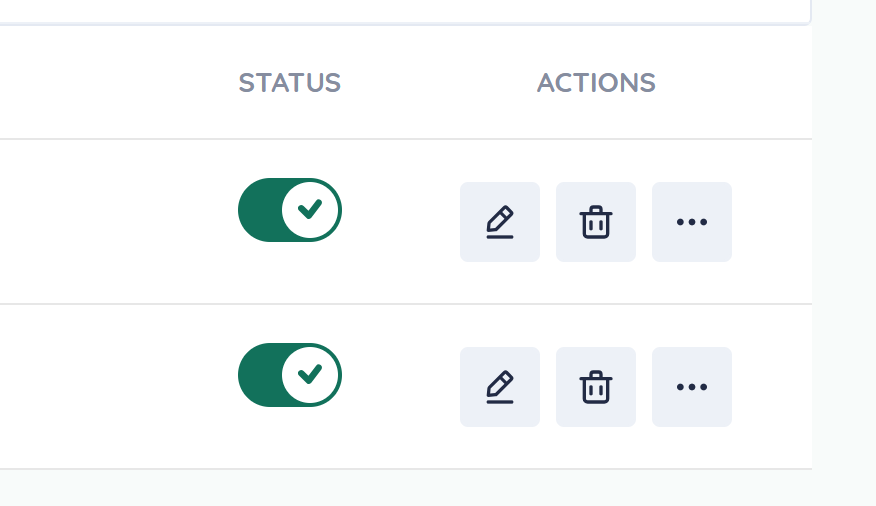
Make sure:
The automation is published or enabled
It is not saved as a draft
It has not been manually paused
If it’s disabled, simply activate it.
If your automation depends on:
Tags
Custom fields
Segments
Contact filters
Then the contact must match those criteria exactly.
Check:
Does the contact have the required tag?
Is the custom field populated correctly?
Is the contact inside the selected segment?
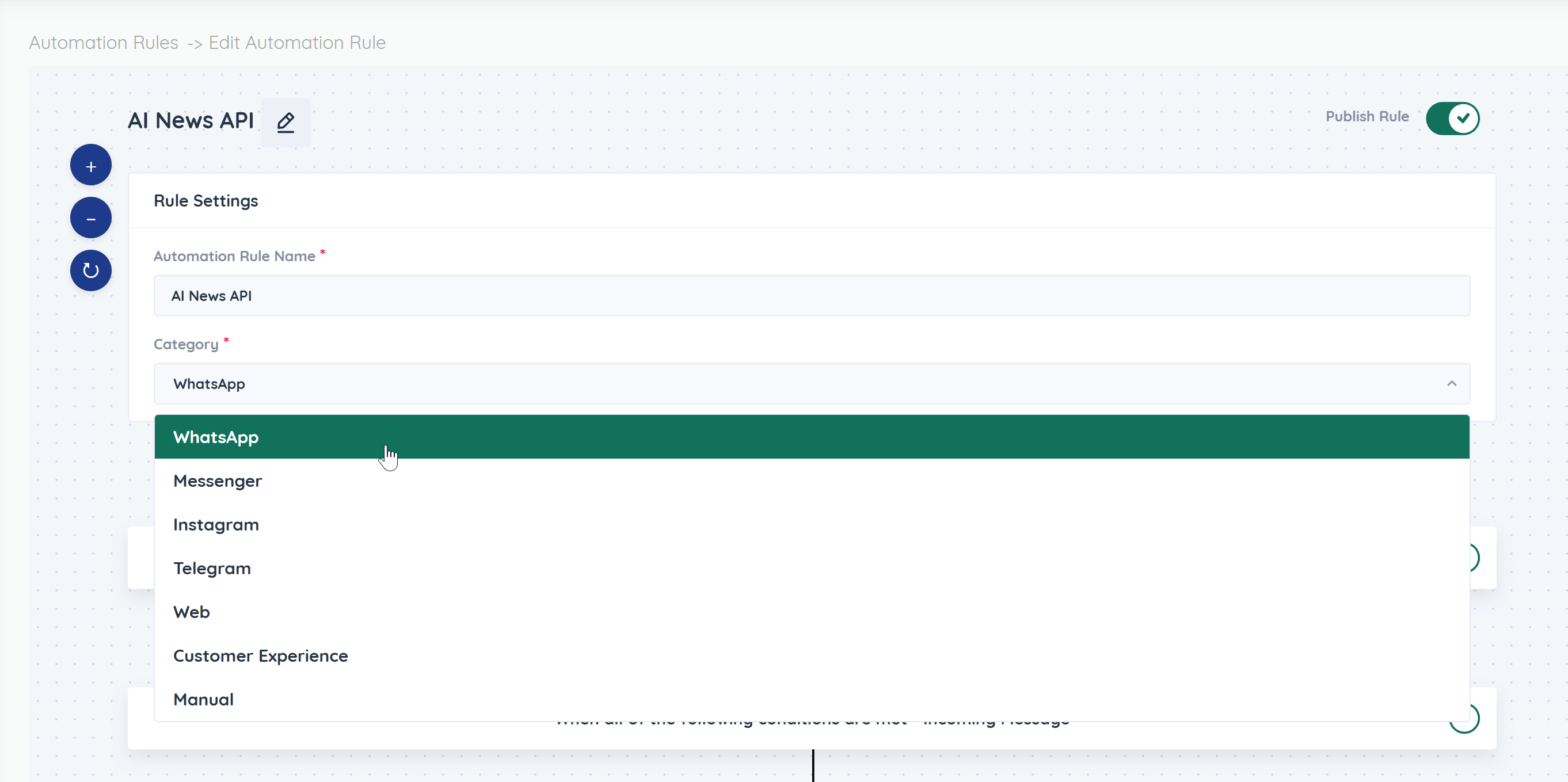
If the automation is channel-specific (e.g., WhatsApp, Instagram, Webchat):
Confirm the channel is connected properly
Ensure the automation is assigned to the correct channel
Check that the contact message came through the correct channel
If your automation has delays (e.g., “Wait 10 minutes before sending message”):
The automation may still be waiting
Timezone differences may affect scheduling
Check the timeline to confirm whether the delay period has passed.
Some automations are set to run:
Only once per contact
Only on first interaction
Only if a specific condition hasn’t occurred before
If the contact already triggered it earlier, it may not run again.
Review:
“Run once” settings
Re-entry conditions
Trigger frequency rules
If using WhatsApp templates:
The template must be approved
It must match the exact format and variables
The contact must be eligible to receive template messages
If the template fails, the automation may stop at that step.
If your WhatsApp Business API account is restricted or quality rating is low, automations that rely on that channel may fail.
Check:
Account status
Messaging tier
Quality rating
Any restriction notice in WhatsApp Manager
Follow this checklist:
Confirm automation is enabled
Verify trigger condition
Check contact eligibility
Review channel assignment
Confirm message templates are approved
Test with a fresh contact
Check logs or conversation timeline
To test properly:
Create a new test contact
Ensure it matches the automation conditions
Trigger the automation manually (if possible)
Monitor the contact’s activity timeline
This helps isolate whether the issue is contact-specific or configuration-related.
Keep triggers simple and clear
Avoid overly complex nested conditions
Regularly review automation logs
Always test after editing an automation
Document your automation logic for your team
Reach out to support if:
Automation is enabled but never triggers
Logs show no execution attempt
Messages fail without visible reason
You suspect a platform-level issue
Provide:
Automation name
Trigger type
Contact example
Screenshot of settings
Most automation issues are configuration-related and can be resolved quickly with a careful review of trigger settings and contact conditions.
If needed, test with a new contact and review the automation flow step-by-step to pinpoint the issue.
