Training your AI chatbot with your own business data allows it to provide accurate, context-aware, and brand-consistent responses to customers.
Follow the steps below to upload your business documents to DMLY.
Before uploading business data:
Go to Integrations → OpenAI
Ensure your OpenAI account is successfully connected
⚠ The Vector Store feature requires an active OpenAI integration.
See full guide on How to Connect your OpenAI Account
Navigate to Integrations → OpenAI
Click on the Vector Stores / Datasets tab
This is where your chatbot knowledge base is stored and managed.
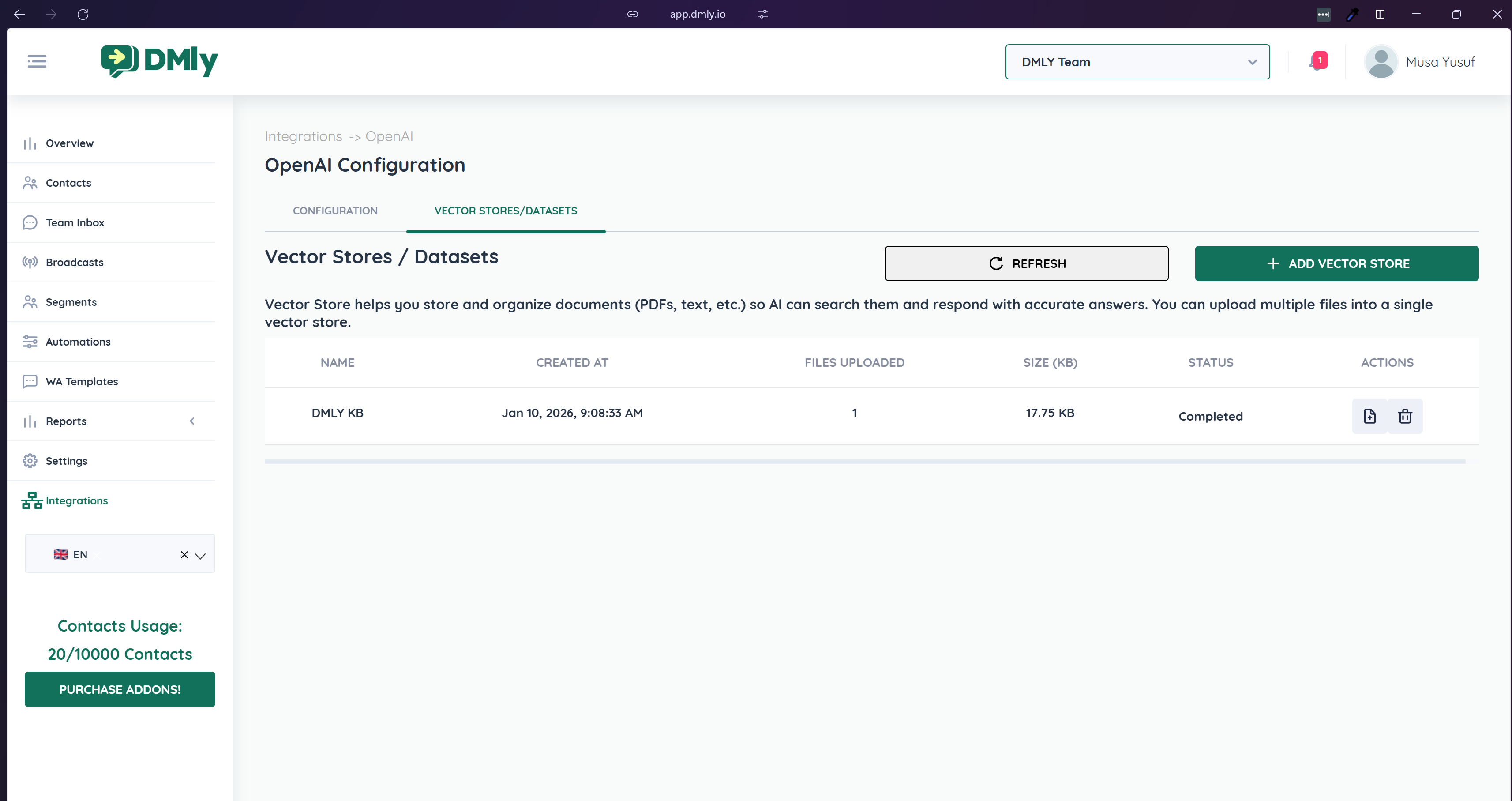
A Vector Store acts as your AI knowledge base.
Click + Add Vector Store
Enter a descriptive name such as:
FAQs
Product Documentation
Policies & Terms
Service Guides
Internal Knowledge Base
Click Save
You can create multiple vector stores for different use cases.
Once the Vector Store is created:
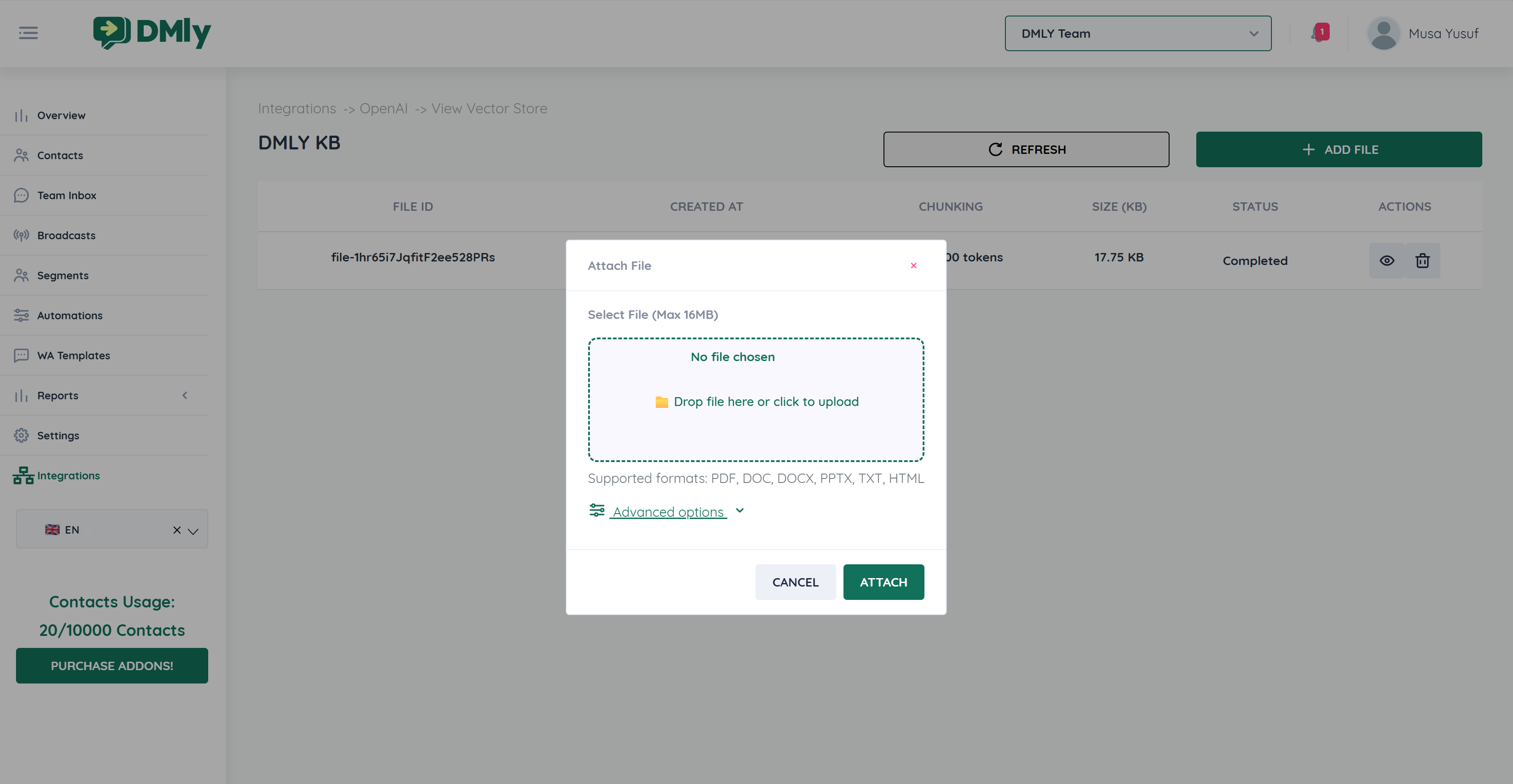
Click + Add File
Upload documents containing your business information.
DOC
DOCX
PPTX
TXT
HTML
After upload, DMLY will process and index your content for AI retrieval.
Your documents are:
Converted into searchable AI embeddings
Indexed inside your Vector Store
Used to power AI chatbot responses
Referenced automatically during customer conversations
Your AI chatbot can now:
Answer FAQs accurately
Provide product information
Explain policies
Assist with lead qualification
Deliver context-aware responses 24/7
To improve chatbot accuracy:
Upload clean, well-structured documents
Use clear headings and sections
Avoid scanned PDFs with unreadable text
Keep documents updated
Separate unrelated content into different vector stores
Example structure:
Product Name
Overview
Features
Pricing
Refund Policy
Shipping Information
Contact Details
This data powers your Customer Support AI and Lead Qualification Chatbot, enabling:
Instant replies
Brand-consistent responses
Reduced agent workload
24/7 automated assistance
If your chatbot gives incorrect answers:
Review your uploaded documents
Ensure information is clear and up-to-date
Re-upload corrected files if necessary
Once uploaded, your AI chatbot is officially trained with your business knowledge 🎉
